AI Image Expander
Ask AI to show more background around a tightly framed subject. Describe the scene you want to continue, review the new composition, and crop it for your layout. This is prompt-based editing; exact canvas dimensions are not guaranteed.
1K: 1 credit · 2K: 6 credits · 4K: 10 credits · Trial previews have a watermark. See credit packs
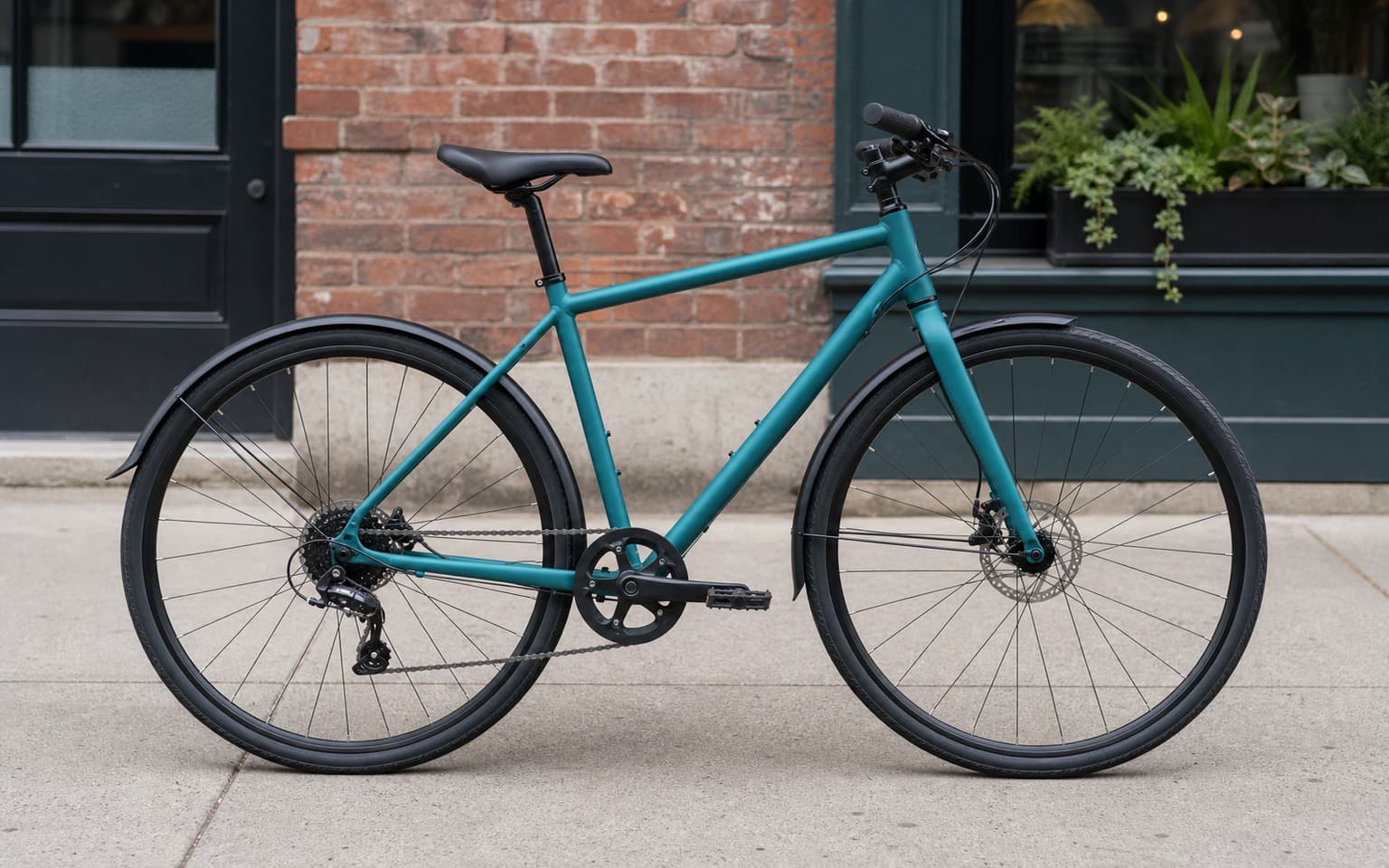
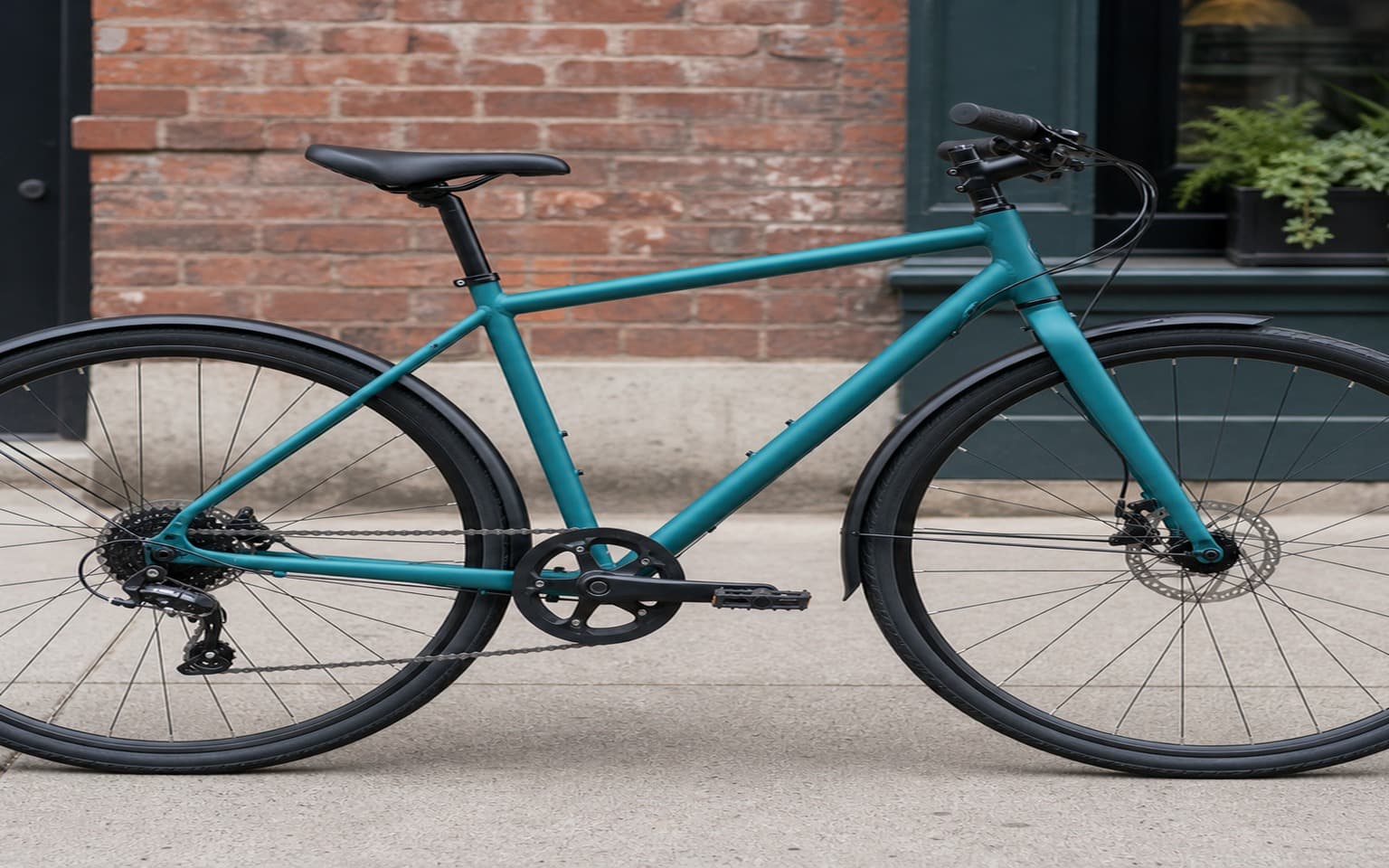
Opening photo editor…
Give a Tight Composition More Breathing Room
When a subject fills the frame, a generative edit can create a version with more surrounding scenery. Ask for a wider composition or more headroom, then check that the subject and perspective still look right. For an exact canvas size or pixel-preserving outpaint, use a dedicated canvas editor.
Where Image Expansion Beats Cropping
Explore a roomier composition before preparing the final crop.
Website Images
Request more background around a subject to leave space for a layout.
Social Images
Explore more headroom or foreground, then crop the result to your publishing format.
Product Presentation
Ask for more surrounding tabletop or studio backdrop around a tight product shot.
Composition Ideas
Generate a wider view of a simple scene and review the invented surroundings.
Real Results Gallery
See how AI transforms photos with professional editing
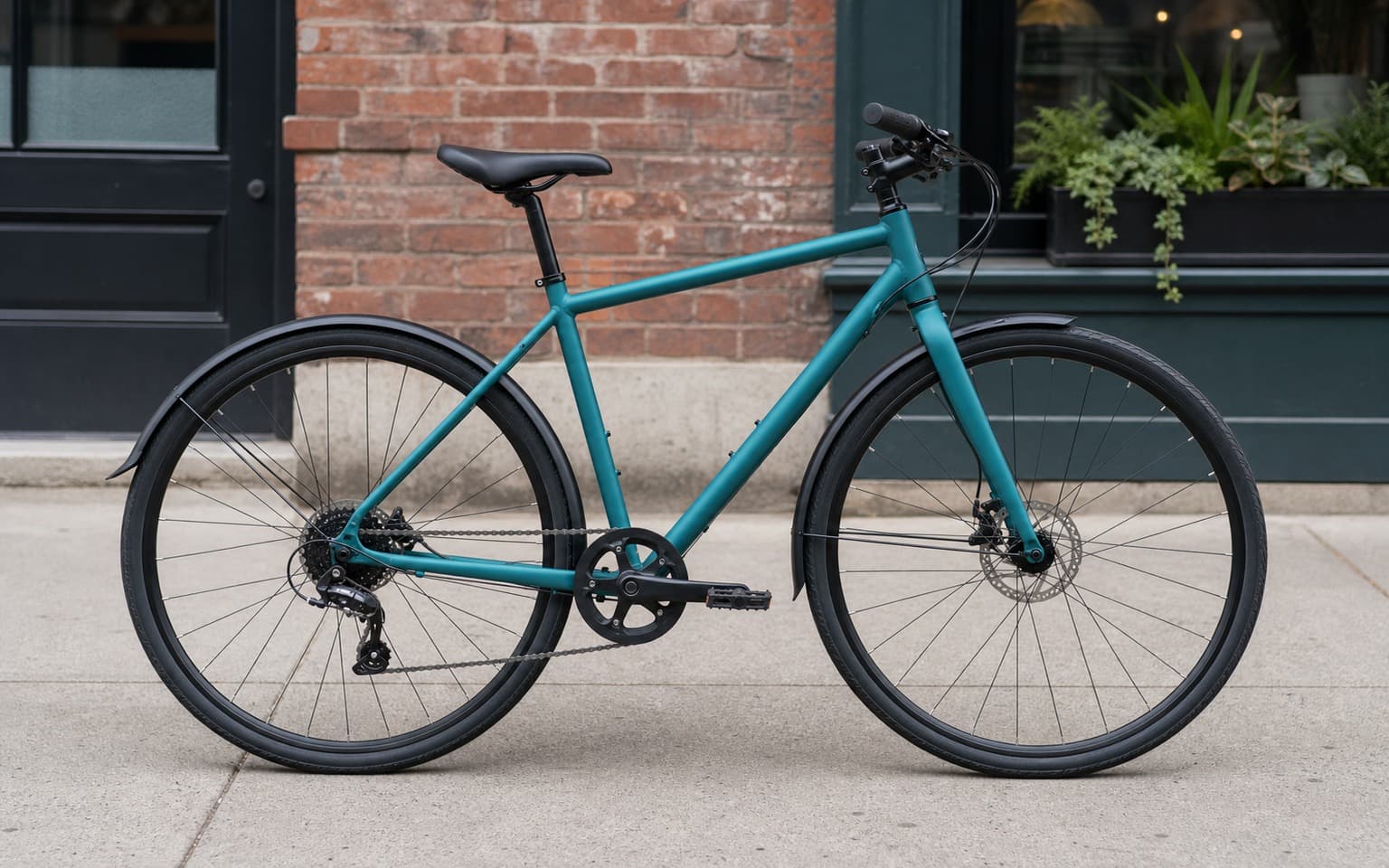
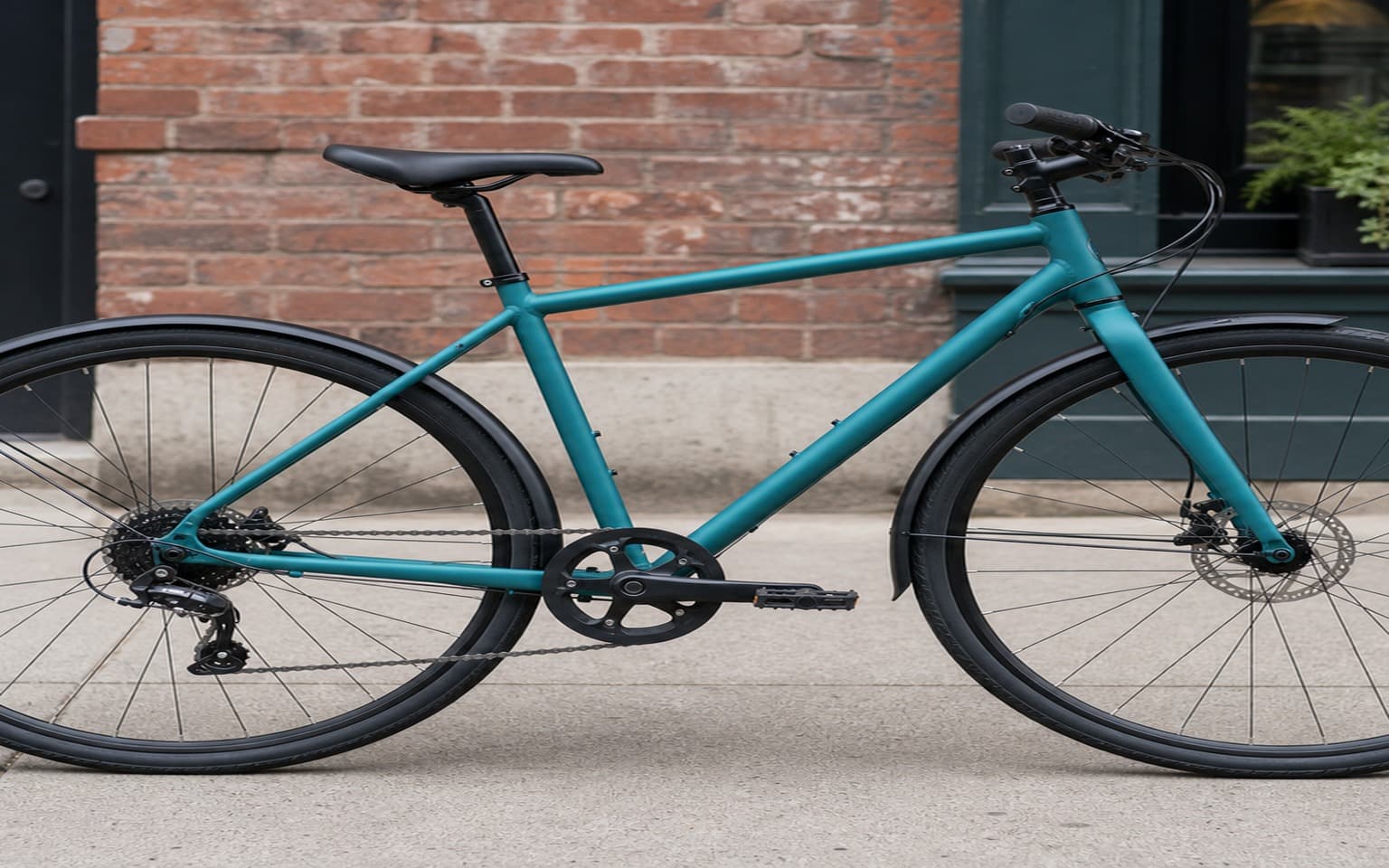
Professional AI Editing
Compare the original and edited image
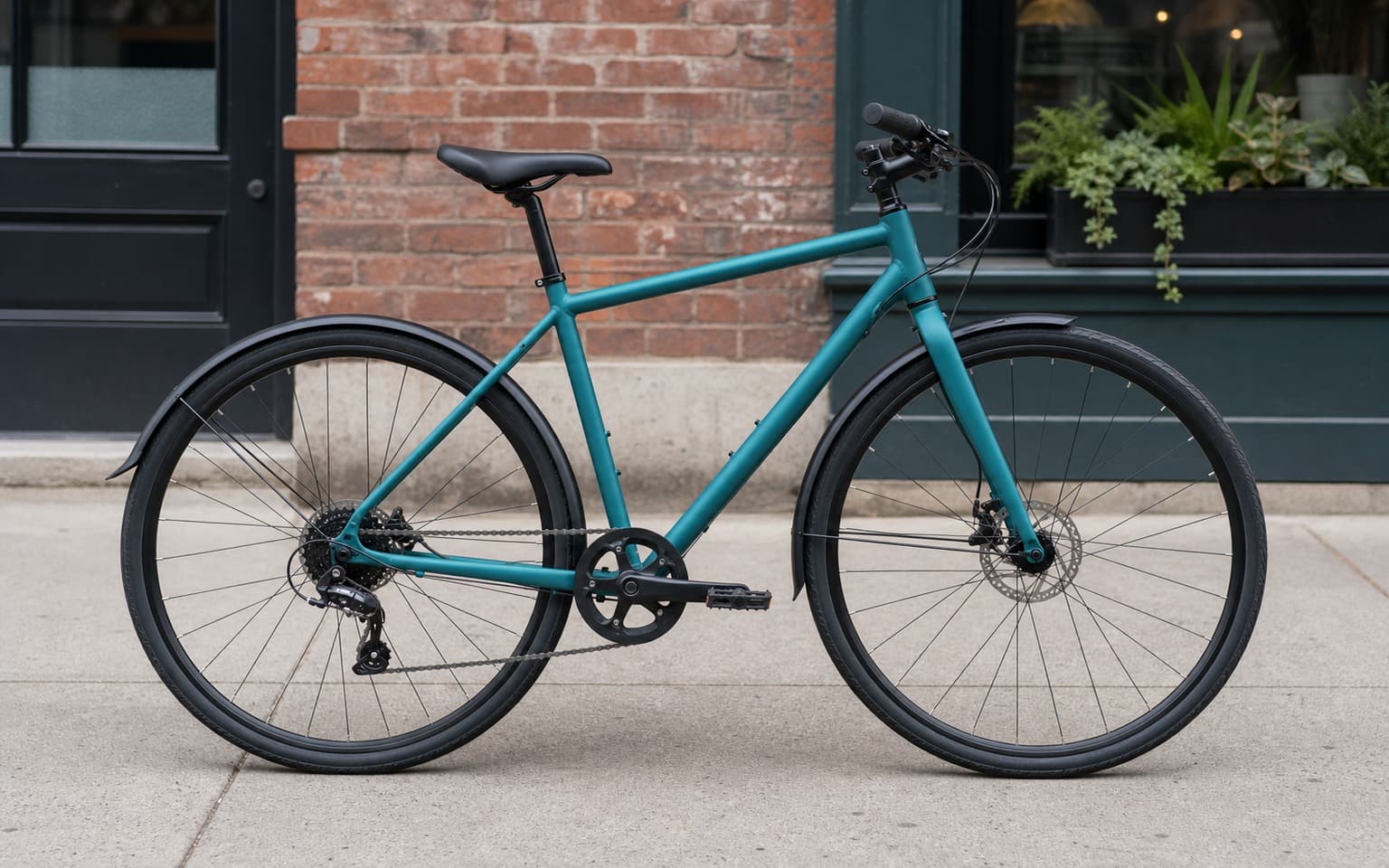
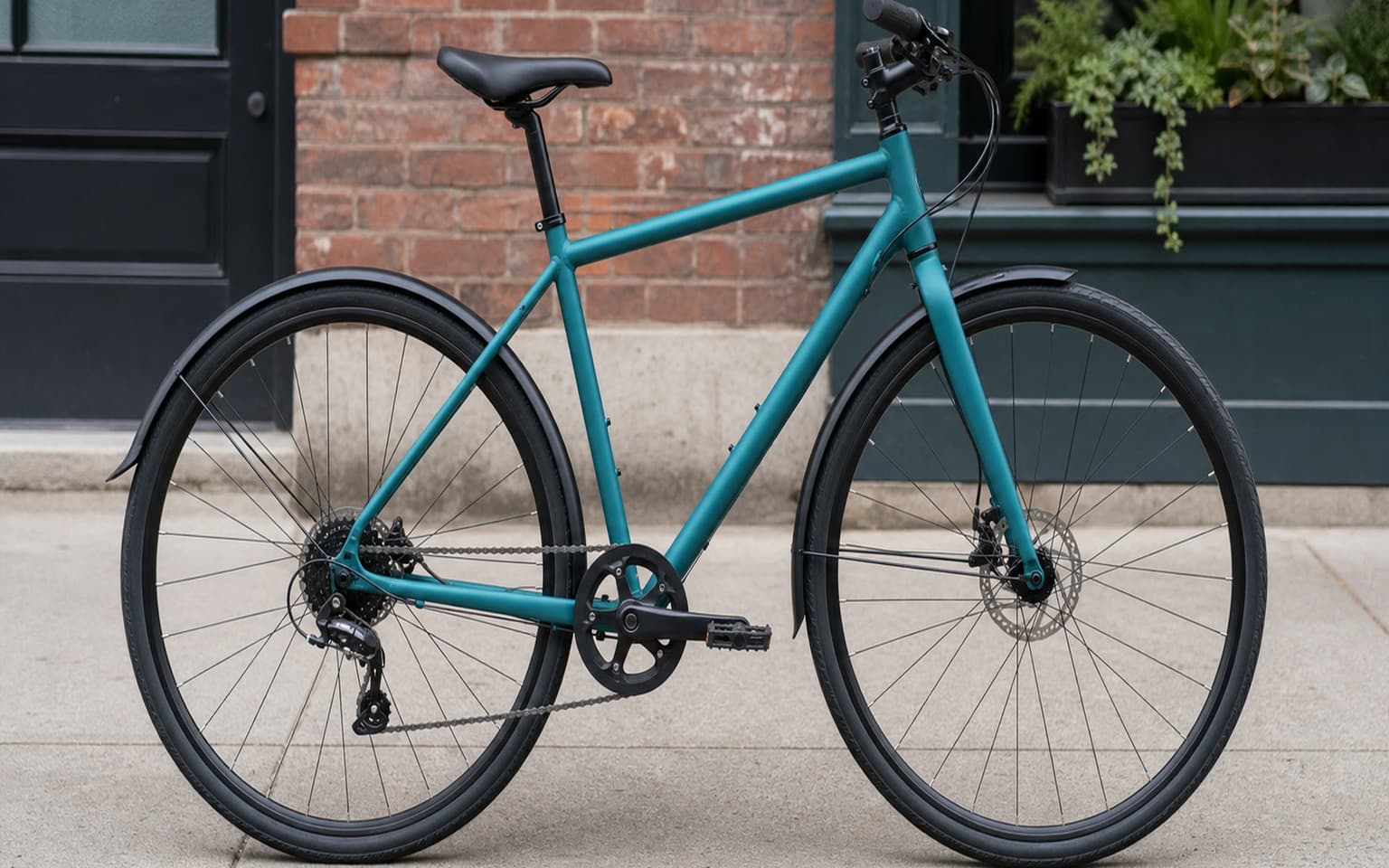
Natural Results
Check edges, lighting, and fine details
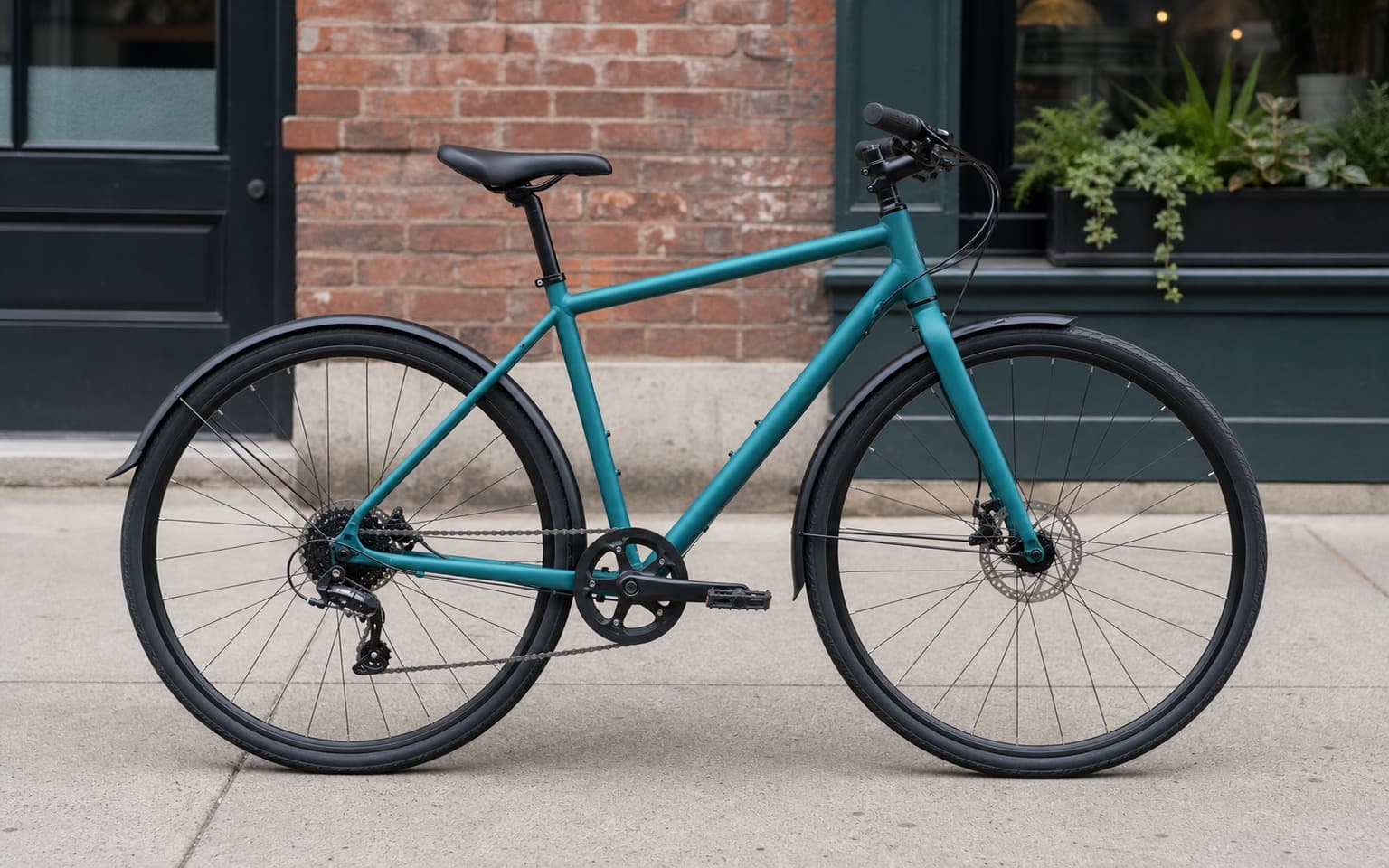
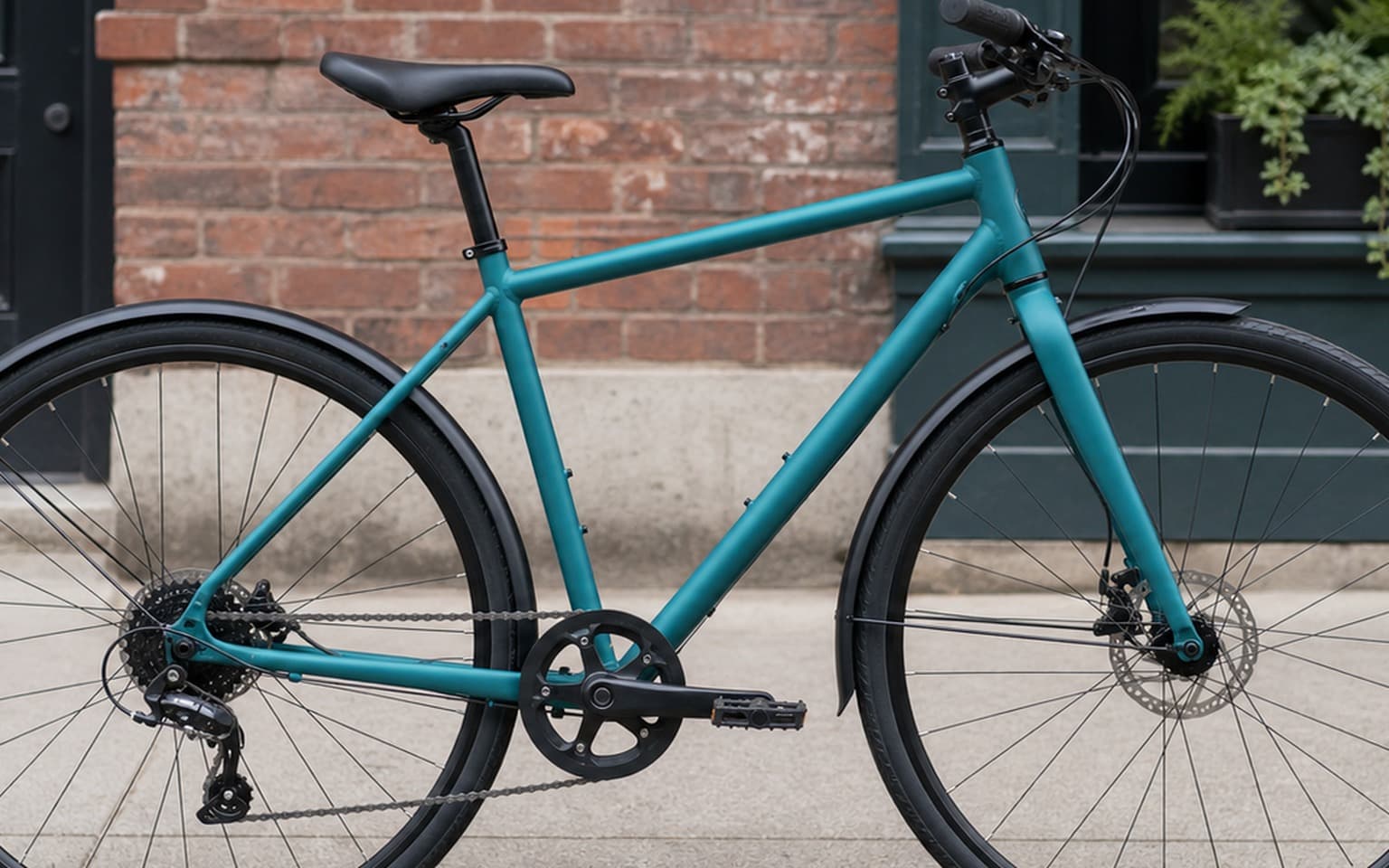
AI Transformation
AI-powered enhancement
Premium Quality
Review the result before downloading
How to Expand an Image with AI
Describe the composition, generate, and review.
Upload a photo
Start with a clear photo and some visible scene around the subject.
Describe the extra space
Try: Show a wider view with more of the plain studio backdrop on both sides. Keep the person centered and preserve their appearance.
Review and prepare your crop
Check the subject, edges and perspective. Crop the generated result as needed. Exact canvas size and unchanged source pixels are not guaranteed.
Why Use AI Image Expansion
Explore a new composition from an existing photo.
A practical way to review your edit
Keep your original and check the generated image before you use it.
Start with one photo
Choose a clear source image and describe one specific change. A focused request makes the result easier to compare with your original.
Review the important details
Compare faces, lettering, edges and other important details with the original. AI can change parts of an image you asked it to preserve.
Choose the result before exporting
Each AI edit uses 1 credit at 1K. Your first credit is free after signup and email verification. Free exports have a watermark; paid credits unlock watermark-free exports.
Questions & answers
How do I expand an image in Weezard?
Upload a photo and request a roomier composition, such as more wall on either side or more foreground. Review the generated version and crop it for your intended use.
What is AI outpainting?
Outpainting generates imagined content beyond an original frame. Weezard offers a prompt-based composition workflow, rather than a dedicated expansion canvas with protected original pixels.
Can I set an exact output aspect ratio or canvas size?
This workflow does not provide an exact expansion canvas or guarantee dimensions from a written prompt. Use the crop controls or another layout editor to prepare a final ratio. For exact pixel dimensions and margins, use a dedicated canvas editor.
How is this different from cropping?
Cropping removes image content. A generative composition edit can invent more scenery around a subject, but it may redraw existing details too. Compare the result with the original.
Does it work with tightly cropped portraits?
You can try it, but the model may invent hair, shoulders or clothing and change facial details. Use a wider original when possible and inspect the result closely.
Can I try it for free?
AI edits cost 1 credit at 1K, 6 credits at 2K or 10 credits at 4K. Your first credit is free after signup and email verification. Free exports carry a small weezard.app watermark; paid credits unlock watermark-free exports.
Can I apply a composition prompt to multiple photos?
The editor supports multiple photos with a shared prompt. Each image is generated separately, so framing and dimensions can differ. Review each result before using it in a set.
AI Image Expansion: Prompts, Composition and Practical Limits
AI image expansion, often called outpainting, creates imagined scenery beyond a tightly framed view. In Weezard, this page opens a prompt-based image editor: you request a wider composition or more background in words, and the model generates a new version of the image.
The editor does not provide a dedicated expansion canvas with precise left, right, top and bottom margins. It also does not guarantee that the original pixels will remain unchanged. If your job requires an exact 1600 × 400 canvas or a protected original layer, use a canvas-based editor for that step.
A prompt for more breathing room
Try: “Show a wider view of this scene with more of the plain wall and floor visible around the subject. Keep the person centered, preserve their appearance, and keep the same lighting direction. Do not add people, text or decorations.”
Ask for one specific change first. A plain backdrop is easier to assess than a detailed street scene with signs, cars and perspective lines. After generation, inspect the subject as well as the new background.
Product photo prompt
“Create a roomier composition with more of the same tabletop around this product. Keep the product centered. Preserve its shape, color, packaging and printed label. Continue the existing soft light and contact shadow.”
Check labels and product proportions carefully. A generative model can redraw details even when the prompt asks it to preserve them. For a catalog requiring exact product pixels, use a cutout and a larger background layer in a manual editor.
Portrait prompt
“Show slightly more of the neutral background around this portrait, with extra headroom. Keep the person's face, hairstyle and clothing as shown. Use the same soft light and do not introduce props.”
A very tight face crop may require the model to invent shoulders, hair or clothing outside the frame. That makes it unsuitable when identity or clothing details must match an unseen original.
Cropping and aspect ratios
A 16:9 banner, a 9:16 vertical layout and a square thumbnail have different framing needs. You can describe the intended composition in your prompt, but the request does not set a precise export canvas. Inspect the generated dimensions and use the crop controls or your layout editor for the final format. Cropping removes parts of an image; it does not create new scene content.
What to check before using the result
Look for bent walls, repeated objects, inconsistent shadows, altered faces and invented text. The new scene is an interpretation, not a recovered photograph of what was outside the camera frame. Keep the original for comparison and use the output only when the changes suit the purpose of the image.
Related tools
For a completely different backdrop, use AI background replacement. For specific background wording, browse the 30 background change prompts. For distracting items already inside the frame, use object removal.
AI edits cost 1 credit at 1K, 6 credits at 2K or 10 credits at 4K. Your first credit is free after signup and email verification. Free exports carry a small weezard.app watermark; paid credits unlock watermark-free exports.
Next step
Related AI photo tools
Choose the tool that matches your next photo edit.
AI background changer
Replace the scene instead of extending it — white, studio, transparent, or custom.
Remove objects from photos
Clear whatever the wider crop just brought into the frame.
Remove text from an image
Erase captions, date stamps, and signs before extending the canvas.
AI photo editor online
Use the full editor when the expand is one step of a larger edit.
Restore old photos
Repair scratches and fading first, then extend a torn or cropped edge.
Best free AI photo enhancer in 2026
Compare photo-enhancement workflows and check the free-trial conditions.
Ready to Transform Your Photos?
Try an edit on your own photo and inspect the result before downloading.
1 free credit after signup and verification • No card required