Mar 30, 2026
How to Convert PDF Files to PNG Format: Complete Guide
Converting PDF to PNG transforms static documents into flexible image files that work anywhere—from web browsers to social media platforms. Whether you're digitizing paperwork, preparing visuals for presentations, or extracting pages for editing, this conversion unlocks possibilities that PDF alone can't provide. The process is straightforward, but understanding why you'd choose PNG over other formats, and which method suits your workflow, separates quick fixes from sustainable solutions.
Quick Answer:
Converting a PDF to PNG means transforming a document file into an image format, creating individual image files for each PDF page. Users do this because PNG images are universally compatible, easy to edit with standard photo tools, and ideal for sharing on websites or social media where PDFs aren't always practical.
This guide walks you through multiple conversion approaches—from free online tools to desktop software—and explains when each method makes sense. You'll learn how to preserve quality, handle multi-page documents efficiently, and avoid common pitfalls that waste time or degrade image clarity. By the end, you'll have a clear strategy for any PDF-to-PNG scenario you encounter.
Table of Contents
- Understanding PNG and PDF File Formats
- Key Reasons to Convert PDF Documents to PNG Images
- Step-by-Step Methods for Converting PDF to PNG Format
- Method 1: Online Conversion Tools (Fastest & Most Accessible)
- Method 2: Desktop Software (Maximum Control & Batch Processing)
- Method 3: Built-in Operating System Features (No Extra Software)
- Method 4: Command-Line Tools (Advanced Users)
- Choosing Your Method
- Quality Settings and PNG Conversion Options to Consider
- Common Challenges When Converting PDF to PNG and How to Solve Them
- Best Practices for PDF to PNG Conversion Workflows
- Making PDF to PNG Conversion Part of Your Digital Workflow
Understanding PNG and PDF File Formats
PDF and PNG are fundamentally different file types designed for different purposes, and understanding these distinctions clarifies why conversion between them makes sense.
PDF (Portable Document Format) is a document container created by Adobe to preserve the exact appearance of content across all devices and operating systems. A PDF file can bundle text, fonts, images, vector graphics, and interactive elements into a single package that looks identical whether opened on a smartphone, tablet, or desktop computer. PDFs excel at maintaining layout integrity—your carefully formatted report or contract displays exactly as intended, regardless of the viewer's software or settings. However, this strength is also a limitation: PDFs are designed for viewing and printing, not for editing with standard image tools or embedding into web pages where flexibility matters.
PNG (Portable Network Graphics) is a raster image format—essentially a grid of colored pixels. Unlike PDFs, which can contain mixed content types, PNG files are pure images. According to Mozilla Developer Network, PNG supports up to 16 million colors in truecolor mode, making it ideal for detailed photographs and graphics. PNG uses lossless compression, meaning no image quality is lost during file size reduction. This makes PNG perfect for web use, social media sharing, and any scenario where you need a universally compatible image file.
The conversion from PDF to PNG transforms a document into individual image files—one image per PDF page. You'd choose this conversion when you need to edit pages with photo editing software, share content on platforms that don't support PDFs, or extract specific pages for reuse in presentations or websites. PNG's universal compatibility and ease of editing make it the natural choice for workflows where PDF's document structure becomes a constraint rather than an advantage.
Key Reasons to Convert PDF Documents to PNG Images
Converting PDF to PNG format serves distinct practical purposes that PDF alone cannot fulfill. Social media platforms like Facebook don't accept PDF uploads directly to feeds, but readily accept PNG images—making this conversion essential for sharing documents across social networks. When you need to embed a document page into a website, blog post, or presentation, PNG's image format integrates seamlessly where PDFs create friction.
Image editing becomes another compelling reason. PDF files are document containers; PNG files are pure image data. If you want to annotate, crop, adjust colors, or remove unwanted elements from a scanned document or form, you'll need the PNG format to unlock standard photo editing tools. This flexibility matters when dealing with real estate listings, product catalogs, or any visual content locked inside a PDF.
Thumbnail generation and archival also benefit from PNG conversion. Creating preview images for document libraries, building searchable visual archives, or extracting specific pages for reuse in different projects all become simpler with PNG's universal compatibility. Unlike PDFs, which require dedicated readers, PNG files open instantly in any browser, image viewer, or application—no special software needed.
The conversion also solves accessibility challenges. Some legacy systems, mobile applications, or content management platforms have limited PDF support but handle images natively. Converting to PNG ensures your content reaches these environments without compatibility headaches, making it the practical choice when document format becomes a barrier rather than a benefit.
Step-by-Step Methods for Converting PDF to PNG Format
Now that you understand why conversion matters, let's explore the practical methods available. Whether you prefer cloud-based simplicity, desktop software control, or built-in operating system features, there's an approach suited to your workflow. Each method has distinct advantages depending on file size, batch processing needs, and your comfort level with technology.
Method 1: Online Conversion Tools (Fastest & Most Accessible)
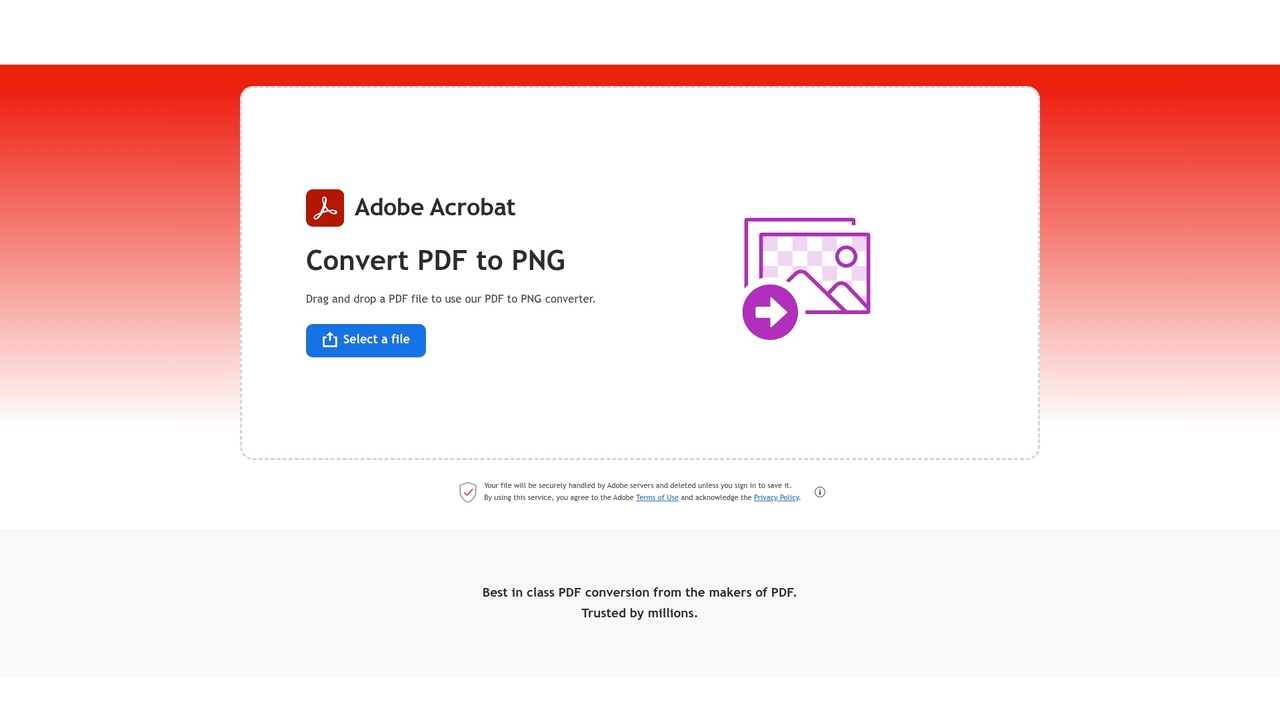
Online converters represent the easiest entry point for most users. No software installation, no learning curve—just upload and download. According to Adobe Acrobat's online converter, conversions process in seconds with files kept under 100MB for optimal speed. Most online PDF to PNG converters handle batch operations efficiently, allowing you to process multiple documents simultaneously.
Steps:
- Open your web browser and navigate to a reputable converter (Adobe's free tool, CloudConvert, or Zamzar are reliable options)
- Click the upload button and select your PDF file from your computer
- Choose PNG as the output format from the dropdown menu
- Configure optional settings: select specific pages if converting a multi-page document, adjust image quality if available, or enable batch mode for multiple files
- Click "Convert" and wait for processing to complete (typically 10-30 seconds)
- Download the resulting PNG file to your computer
Why this works: Online tools require zero installation and work on any device with internet access. They're ideal for occasional conversions or when you lack administrative rights on your computer.
Expected result: A PNG file appears in your downloads folder, ready to use immediately.
Pro tip: Most online converters limit file sizes to 20-25MB per file. If your PDF exceeds this, compress it first using your PDF reader's export function, or split it into smaller sections.
Method 2: Desktop Software (Maximum Control & Batch Processing)
Desktop applications give you granular control over conversion settings and excel at handling large batches. Programs like Adobe Acrobat Pro, IrfanView, or XnConvert let you customize compression levels, resolution, and page selection before conversion begins. This method shines when you're converting dozens of files regularly or need consistent output quality.
Steps:
- Download and install your chosen desktop converter (free options like IrfanView work well; paid options like Adobe Acrobat Pro offer advanced features)
- Launch the application and locate the "File" or "Convert" menu
- Select "Open" or "Import" and choose your PDF file
- Navigate to output settings and select PNG as the format
- Adjust quality, resolution, and color depth according to your needs (higher DPI = larger file size but sharper images)
- Choose your destination folder and click "Convert" or "Export"
- For batch processing: select multiple PDF files at once, apply the same settings to all, and let the software process them sequentially
Why this works: Desktop software processes files locally without uploading to external servers, which matters for sensitive documents. Batch operations save enormous time when converting 50+ files.
Expected result: PNG files appear in your chosen folder with consistent quality across all conversions.
Pro tip: Set your default output resolution to 150 DPI for document archives and 300 DPI for images requiring fine detail. Higher settings increase file size dramatically without visible quality improvement for most uses.
Method 3: Built-in Operating System Features (No Extra Software)
Both Windows and macOS include native image conversion capabilities. Windows users can leverage the Photos app or Paint, while macOS users have Preview—a surprisingly capable tool that handles PDF-to-PNG conversion directly.
Steps (macOS Preview):
- Right-click your PDF file and select "Open With" → "Preview"
- Once the PDF opens in Preview, click "File" in the menu bar
- Select "Export" from the dropdown menu
- In the dialog box, change the file format dropdown from PDF to PNG
- Choose your save location and click "Save"
Steps (Windows Photos app):
- Right-click your PDF and select "Open With" → "Photos"
- Click the three-dot menu icon in the top-right corner
- Select "Edit" or look for export/save options
- Choose PNG format and specify your save location
- Click "Save"
Why this works: Zero additional software means no installation, no subscriptions, no learning new interfaces. These tools handle single-page PDFs and simple conversions efficiently.
Expected result: A PNG file saves to your specified location with minimal processing time.
Limitation: Built-in tools struggle with multi-page PDFs—they typically convert only the first page. For documents with multiple pages, online tools or desktop software become necessary.
Method 4: Command-Line Tools (Advanced Users)
For developers and power users, command-line utilities like ImageMagick or Ghostscript offer scriptable, automated conversion. These tools excel in server environments or when you need to convert hundreds of files programmatically.
Basic ImageMagick command:
convert input.pdf output.png
Why this works: Automation scales effortlessly. You can batch-process thousands of files, integrate conversion into workflows, and maintain version control over your conversions.
Expected result: PNG files generate automatically without manual intervention for each file.
Limitation: Requires technical knowledge and command-line familiarity. Not practical for casual users.
Choosing Your Method
Use online tools when converting occasionally, working across different devices, or handling sensitive files (choose HTTPS-enabled services). Choose desktop software for regular, high-volume conversions or when you need precise quality control. Rely on built-in features for quick single-page conversions on your primary device. Consider command-line tools only if you're automating workflows or managing large document libraries programmatically.
The conversion itself is straightforward—the real decision lies in matching the method to your frequency, file volume, and technical comfort level.

Quality Settings and PNG Conversion Options to Consider
When converting PDF files to PNG format, the technical settings you choose directly impact both file size and visual quality—and there's no one-size-fits-all answer. The key is understanding the trade-offs and matching them to your specific use case.
Resolution and DPI form the foundation of this decision. For web display and screen viewing, 72 DPI delivers crisp results without unnecessary file bloat. However, according to Adobe's guidance on DPI standards, professional printing requires 300 DPI to maintain sharp, detailed output. If you're converting a PDF for archival or future print use, shooting for 300 DPI ensures you won't need to reconvert later. For casual web sharing, 72 DPI keeps files lean.
Compression levels offer another critical lever. PNG supports lossless compression, meaning no image data is discarded—only the file size is reduced through encoding efficiency. Higher compression takes longer to process but produces smaller files. Lower compression speeds up conversion but increases file size. This matters enormously if you're handling hundreds of pages.
Color depth determines how many colors the PNG can represent. Full 24-bit color (16.7 million colors) is ideal for photographs and complex documents but inflates file size. For text-heavy PDFs with simple graphics, 8-bit indexed color (256 colors) cuts file size dramatically with minimal visual loss.
| Use Case | Recommended DPI | Compression | Color Depth | Best For |
|---|---|---|---|---|
| Web/Email | 72 | High | 8-bit | Fast sharing, minimal storage |
| Screen Viewing | 96–144 | Medium | 24-bit | Presentations, digital reading |
| Print Output | 300–600 | Low–Medium | 24-bit | Professional printing, archival |
| Document Archival | 300 | High | 24-bit | Long-term storage, future flexibility |
Start with these defaults, then adjust based on your workflow. Most conversion tools let you preview results before finalizing, so test a single page first to confirm the balance feels right for your needs.
Common Challenges When Converting PDF to PNG and How to Solve Them
Converting PDF to PNG introduces practical friction points that catch users off guard. Understanding these obstacles—and their solutions—saves time and prevents frustration.
Multi-page PDFs create multiple image files. When you convert a multi-page document, each page becomes a separate PNG. This means a 50-page PDF yields 50 individual images, which can clutter your workspace. Most conversion tools handle this by automatically bundling outputs into a ZIP archive for batch download, but you'll still need to organize and name files logically afterward. Consider renaming them with sequential numbering (page-001.png, page-002.png) immediately after conversion to maintain order.
Quality degradation happens with aggressive compression. PNG compression settings directly impact visual fidelity. If your converter defaults to maximum compression, text becomes fuzzy and fine details blur. The solution is simple: preview the first page before processing the entire document. Adjust DPI and color depth upward (as discussed in the previous section) until the preview matches your quality expectations, then batch-convert the rest.
Password-protected PDFs block conversion. Encrypted PDFs won't convert until you unlock them. Tools like Adobe Acrobat allow you to enter the correct password and proceed with conversion, but you must have the password first. If you've lost access, contact the document owner or use PDF password recovery tools—though these work only on PDFs with weak encryption.
Large file sizes overwhelm storage. High-resolution PNG conversions (especially 300+ DPI with 24-bit color) produce massive files. A single page can exceed 5 MB. For archival purposes this is acceptable, but for web sharing, reduce DPI to 96–144 and use 8-bit color instead. This shrinks file size by 60–80% with minimal visible loss for screen viewing.
Formatting and layout shift unexpectedly. Complex PDFs with embedded fonts, layered graphics, or unusual margins sometimes render incorrectly as PNG. Test a sample page first to catch layout issues before committing to full conversion.
Best Practices for PDF to PNG Conversion Workflows
Establishing a sustainable conversion workflow saves time and prevents quality degradation across batches. Start with a clear naming convention that captures the source document, conversion date, and resolution level—for example, invoice_2024-01-15_300dpi.png. This approach makes files searchable and prevents accidental overwrites when converting the same PDF multiple times at different quality settings.
Organize converted files into logical folder structures by document type, client, or project. Separate high-resolution archives (300+ DPI for printing) from web-optimized versions (96–144 DPI). This separation prevents uploading oversized files to websites and ensures you retain master copies for future reprinting.
Batch processing is your efficiency multiplier. Most conversion tools allow you to queue multiple PDFs and apply identical settings across all files at once. Test your DPI, color depth, and format settings on a single page first, then apply those parameters to the entire batch. This eliminates manual adjustments for each file.
Know when PNG isn't the answer. Use PNG for documents requiring transparency or when sharing via web platforms. For archival storage, PDF remains superior—it preserves formatting indefinitely and uses less disk space. For print-ready documents with complex layouts, convert to TIFF instead; it handles high-resolution graphics better than PNG while maintaining lossless quality.
Document your conversion settings in a simple spreadsheet: source filename, output DPI, color mode, file size, and quality notes. This record becomes invaluable when you need to recreate conversions months later or troubleshoot why a particular batch looked degraded.
Making PDF to PNG Conversion Part of Your Digital Workflow
PDF to PNG conversion becomes genuinely valuable once you understand which situations demand it and which don't. The choice between formats isn't arbitrary—it's about matching the tool to the task. Web sharing, transparency needs, and platform compatibility favor PNG, while archival storage and complex layouts still belong in PDF. Your workflow improves when you stop treating conversion as a one-off task and instead build it into your regular processes.
The methods available range from simple online tools to sophisticated batch processing. Desktop software gives you granular control over DPI and color depth, while cloud-based converters prioritize speed and accessibility. Choose based on volume: converting a single document? An online tool saves setup time. Processing dozens of files monthly? Desktop software or API integration pays dividends through automation.
Document your conversion parameters—DPI settings, color modes, output sizes—in a simple spreadsheet. This record prevents recreating the same settings repeatedly and helps you troubleshoot quality issues months later. Test settings on a single page before committing to batch operations.
Start converting today. Pick one method that matches your current workflow, run a test conversion, and assess the results against your actual needs. PNG format unlocks possibilities that PDF simply cannot deliver, but only when you deploy it strategically. The investment in understanding these conversion mechanics pays forward every time you need to share, display, or repurpose document content.

Ready to jump in?
Upload a photo, describe a change and review the result. Try 1 credit after signup and email verification.