May 18, 2026
Best Free AI Photo Enhancer 2026: 7 Tools Compared

This guide is published by Weezard, which is one of the tools discussed. Try your own photo and check the export before choosing a paid option. Weezard includes 1 free credit after signup and email verification; free exports have a watermark.
Run Weezard on your own photo — right here
Drop your image, pick a preset, see the AI result in seconds. Made for realtors, Airbnb hosts, and anyone restoring family photos.
Last updated June 2026 — re-tested by the Weezard team on the same four reference photos (a soft portrait, a low-light interior, a 600×400 product shot, and a faded 1970s family print). We refresh these rankings each quarter so they reflect how the free tiers actually behave today, not vendor marketing.
Quick answer: the best free AI photo enhancer depends on what you actually need to fix. Use Weezard for general online editing (enhance, change background, remove objects, restore old photos in one place), Remini for face-detail recovery on portraits, Upscayl for fully free, no-watermark desktop upscaling, Let's Enhance for batch web work, and Topaz Photo AI if you're already paying for a photographer toolkit.
The verdict at a glance
| Rank | Tool | Best for | Why it wins (or doesn't) |
|---|---|---|---|
| 🥇 #1 Overall | Weezard | All-in-one online editing | Only free tool that bundles enhance + background change + object removal + restore in one browser workspace, no watermark, no install |
| 🥈 #2 | Remini | Portrait face recovery | Best face detail recovery on the market, but watermark on free tier and weak on non-portraits |
| 🥉 #3 | Upscayl | Pure upscaling, fully free | Best free-forever option, but desktop-only and upscale-only |
| 4 | Topaz Photo AI | Pro photographers | Highest quality output, but paid only and desktop only |
| 5 | Let's Enhance | Batch web work | Solid batch, but limited free credits |
| 6 | VanceAI | Mixed enhance + upscale | Decent middle ground, slightly over-processed outputs |
| 7 | Fotor | Quick browser fixes | Familiar UI but watermark and lower ceiling |
7 free AI photo enhancers compared (2026)
We picked the seven tools we see real users compare most often and put each through the same test set: a soft portrait, a low-light interior, a 600×400 product photo, and a faded 1970s family print. The detailed spec table:
| Tool | Free tier | Max resolution (free) | Watermark | Batch | Best for |
|---|---|---|---|---|---|
| Weezard ⭐ | Credits on signup, no card | 4K | No | Yes (multi) | All-in-one online editing |
| Remini | Daily limit | ~2K | Yes (free) | No | Portrait face recovery |
| Upscayl | Unlimited (desktop) | 4× upscale | No | Yes | Free desktop upscaling |
| Let's Enhance | 10 free credits | 4K | No | Yes | Web/print upscaling |
| Topaz Photo AI | Trial only | Full | No | Yes | Pro photographers (paid) |
| VanceAI | ~3 free credits/day | 4K | No | Yes (paid) | Mixed enhance + upscale |
| Fotor | Daily limit | 2K | Yes (free) | Limited | Quick one-click web edits |
How we tested
We ran the same four reference images through each tool's default "enhance" mode (no manual sliders) and judged outputs on three things: did skin still look like skin, did edges stay sharp without halo artifacts, and did backgrounds stay coherent. Scores below reflect that practical test, not marketing claims.
Real before/after results from Weezard
The interactive demo at the top of this page runs the same model on either your photo or a sample. Below are a few representative results from production to illustrate what to expect.
Old photo restoration: faded 1940s family portrait — the AI recovers natural skin tone, sharpens facial detail, and cleans surface scratches without smoothing away the period-accurate grain.
Background change for product photography: ecommerce product on a busy background — replaced with a clean white studio backdrop, contact shadow preserved so the product still reads as physically sitting on a surface.
Car listing reflection removal: vehicle photographed on a driveway with the photographer reflected in the paint — reflections cleaned up while bodyline highlights stay intact.
Try the specific tool you need:
- AI photo editor online — general enhance, edit, restore in one workspace
- AI restore old photos — for scratched, faded, or damaged family prints
- Remove objects from photos — for photobombers, trash, wires, watermarks
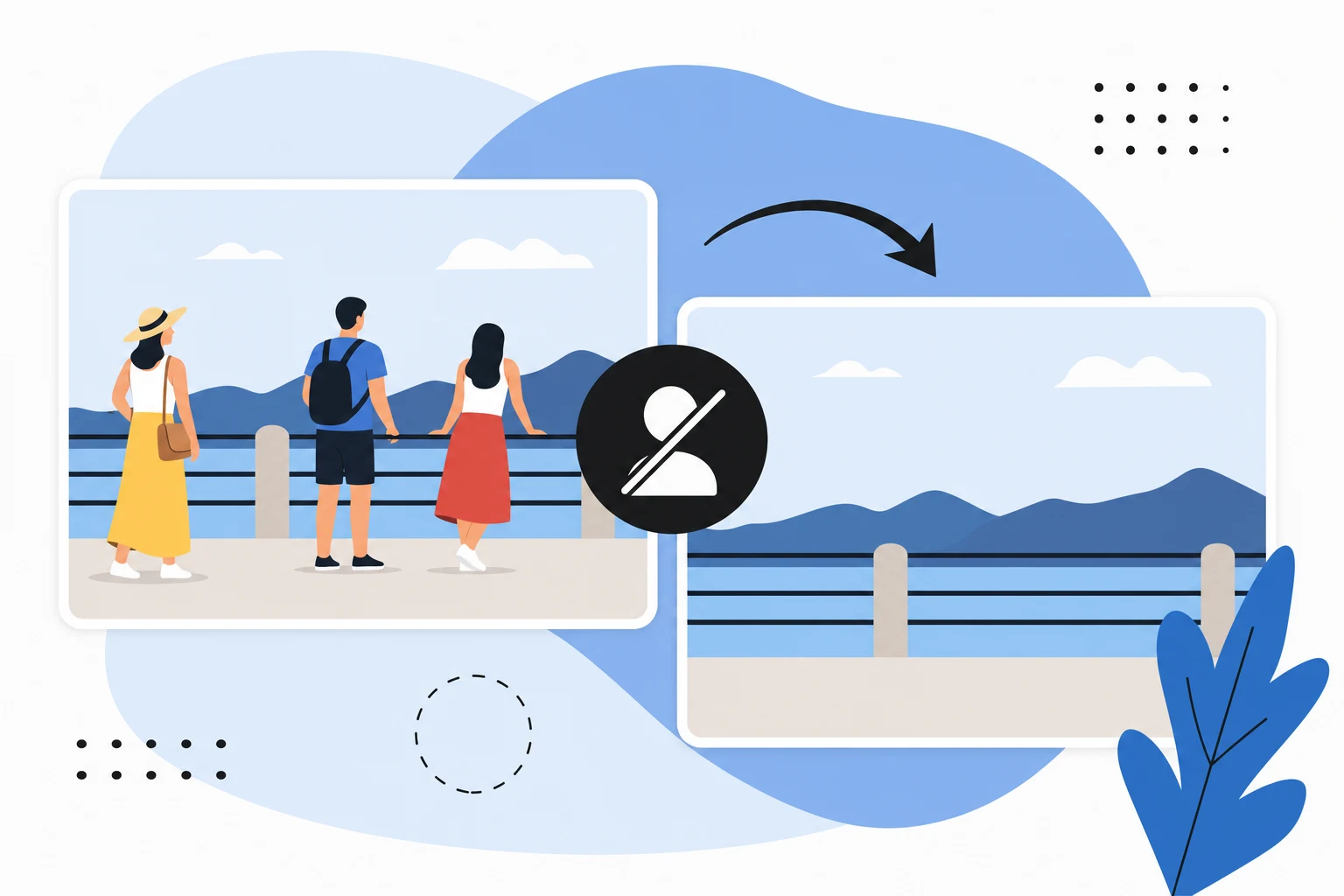
- Change photo background — for product, portrait, real-estate, and listing photos
Free credits on signup, no card required.
The 7 enhancers, in detail
1. Weezard — best all-in-one online editor
Weezard runs entirely in the browser and bundles the four jobs people actually do most: enhance quality, change background, remove unwanted objects, and restore old photos. Across 5,000+ real user edits, the most-used presets are change background, restore + enhance colors, fix artifacts, and portrait enhance — exactly the cases this guide is about.
- Pricing: Free credits on signup. Pay-as-you-go credit packs. No forced subscription.
- Strengths: One workspace for enhance + edit + restore. No watermark. Real estate and automotive presets included. Multi-image composition.
- Weaknesses: Browser-only (no desktop app). Some advanced presets cost more credits.
- Try the presets used most: enhance portrait, change background, restore old photos, remove objects.
2. Remini — best for faces
Remini's specialty is one thing: pulling detail back into faces. On our soft portrait test it recovered eyelashes and skin texture better than anything else on this list. It's less good at non-portrait subjects — a product shot came out over-smoothed and an interior lost realistic texture.
- Pricing: Free with daily limits and watermark; weekly subscription unlocks full output.
- Strengths: Best face recovery, mobile-first, fast.
- Weaknesses: Watermark on free exports, weak on non-face subjects, no batch.
3. Upscayl — best fully free option
Upscayl is open-source, runs locally on your machine (Mac, Windows, Linux), and has no watermark or limit. It's pure upscaling — it won't change backgrounds or remove objects — but if your problem is "this 800px image needs to be 3200px," nothing beats free + unlimited + no upload.
- Pricing: Free forever.
- Strengths: No upload, no watermark, no limit, multiple model choices.
- Weaknesses: Upscale only. Requires a 1GB-ish install. No mobile app.
4. Let's Enhance — best for batch web work
Let's Enhance is cloud-based with strong batch processing and decent default models. Good fit if you regularly resize many images for a website or store and want predictable, consistent output.
- Pricing: 10 free credits, then subscription or pay-per-image.
- Strengths: Batch, API, presets per use case (photo, digital art, scan).
- Weaknesses: Free tier runs out fast. Output less natural than Weezard on portraits.
5. Topaz Photo AI — best if you're already paying
Topaz is the desktop pick photographers buy once and use for years. It's not free past the trial, but the output quality on RAW files and difficult low-light shots is the benchmark everything else is measured against.
- Pricing: One-time license, no free tier beyond trial.
- Strengths: Highest output quality, integrates with Lightroom/Photoshop.
- Weaknesses: Not free, desktop only, learning curve.
6. VanceAI — middle ground for mixed jobs
VanceAI is a cloud suite that mixes enhance, upscale, denoise, and a few generative tools. The free tier is generous enough to handle a one-off project, output is decent if not best-in-class.
- Pricing: ~3 free credits/day, subscription for serious volume.
- Strengths: Wide toolkit in one place, no install.
- Weaknesses: Outputs feel slightly over-processed. Subscription required for batch.
7. Fotor — quick browser fixes
Fotor's AI enhancer is a side feature of a bigger free design tool. Fine for fast social-media touch-ups; not what you'd use for restoration or print.
- Pricing: Free with watermark, premium for full export.
- Strengths: No signup required to try. Familiar Canva-style UI.
- Weaknesses: Watermark, lower output ceiling, weak on portraits.
Best free AI photo enhancer apps for mobile (2026)
If you want to enhance photos on your phone, the picture changes — the strongest desktop tools (Upscayl, Topaz) have no mobile app at all. For on-the-go editing in 2026:
- Remini (iOS + Android) — still the best mobile app for face recovery; the free tier adds a watermark and a daily cap.
- Weezard — runs in any mobile browser, so there's nothing to install; the same enhance, background-change, object-removal, and restore presets work from a phone. Best when you need more than upscaling.
- Fotor — a handy free mobile app for quick one-tap social touch-ups, though outputs cap lower than the dedicated tools.
For most phone workflows we land on Weezard-in-browser for all-round edits and Remini when the photo is a close-up portrait.
Best free online AI image enhancers (no download)
"Online" matters when you're on a work laptop, a Chromebook, or just don't want a 1 GB install. Every tool below runs entirely in the browser:
- Weezard — full enhance + edit + restore workspace online, no watermark.
- Let's Enhance — cloud upscaling with solid batch, but the free credits run out fast.
- VanceAI — a wide online toolkit (enhance, denoise, upscale) on a small daily free quota.
- Fotor — browser editor for fast fixes.
Desktop-only tools like Upscayl and Topaz Photo AI give the cleanest upscales, but you trade away the no-install convenience. If "free online AI image enhancer" is your search, start with Weezard and only move to a desktop app when you specifically need maximum-resolution upscaling.
Best free AI photo restoration tools
Restoration is a different job from enhancement — you're rebuilding detail in scratched, faded, or torn photos, not just sharpening a modern shot. Our picks:
- Weezard restore old photos — recovers skin tone, repairs scratches, and can colorize black-and-white prints in the same workspace.
- Remini — excellent when the restoration is specifically a face close-up.
- Upscayl — useful as a second pass to push a restored scan up to print resolution.
On our faded 1940s test print, Weezard's restore preset recovered natural skin tone and cleaned surface scratches without erasing the period-accurate grain — the failure mode of weaker tools is an over-smoothed, plastic result.
Photo enhancer vs upscaler vs image enhancement — what's the difference?
These terms get used interchangeably, but they're not the same job:
- Enhance — improves an existing image: sharpness, color, lighting, noise. Same pixel count, better quality.
- Upscale — increases resolution (e.g. 800px → 3200px) by generating new pixels. Best when the image is simply too small.
- Restore — rebuilds lost detail in old or damaged photos (scratches, fading, low detail).
Most "AI image enhancement tools" do one or two of these well. Weezard's edge in this list is doing all three in one place, which is why it tops the overall ranking.
How to choose the right one for your photo
Pick by the job, not the brand:
- Old, faded, or torn family photo → Weezard's restore + enhance colors preset, or Remini if it's a portrait close-up.
- Ecommerce product shot → Weezard for enhance + background change in one step. Add Upscayl if you need it pushed to print resolution.
- Real estate interior → Weezard real estate presets (the enhance sky and lawn, complete real estate photo enhancement presets are the 7th and 8th most-used presets in production).
- LinkedIn or social headshot → Weezard's portrait enhance, then Remini if facial detail still needs more work.
- Just upscaling a small image → Upscayl (free, unlimited) or Let's Enhance (cloud, batch).
- You're already a paid Lightroom user → Topaz Photo AI fits that workflow.
Common questions about AI photo enhancers
Most readers ask the same handful of things. Quick answers below — the longer FAQ at the bottom of the page covers edge cases.
- Will AI fix a completely blurry photo? No. AI fills in detail that's plausibly there, not detail that was never captured.
- Do these tools change the original? No, all of them work on a copy. Originals stay safe.
- Is it safe to upload personal photos? Check the privacy policy. Weezard, Topaz, and Upscayl don't train models on your uploads. Be cautious with unknown free mobile apps.
Tips to get better results from any free enhancer
- Start with the highest-quality source you have. Don't enhance a screenshot of a screenshot.
- Test on one image before buying credits. Every model handles skin, glass, and text differently.
- Upscale before you enhance if the source is small. More pixels = more for the model to work with.
- Watch for the plastic look. If skin or fabric loses texture, dial back the enhance intensity or try a different preset.
- Export at the resolution you'll actually use. Don't upscale to 4× if your final image is 1080px wide on Instagram.
Try it on your photo now
If you're comparing tools because you need a result today, the fastest path is to upload one photo to Weezard, run the enhance + restore preset, and check faces, edges, and backgrounds at 100% zoom. If the output works, you've got a free editor that also handles background changes, object removal, and restoration in the same workspace.
Try the Weezard AI photo enhancer →
Other use-case shortcuts: change a photo background · restore old photos · remove objects from photos · enhance real estate photos
FAQ
What is the best free AI photo enhancer in 2026?
It depends on the job. Weezard works best as an all-in-one online editor (enhance, change background, remove objects, restore old photos). Remini is the strongest pick for facial detail recovery on portraits. Upscayl is the best fully free, no-watermark option for desktop upscaling. Topaz Photo AI is the premium pick for photographers who already pay for tools.
Can AI really enhance a blurry photo?
Yes, but with limits. AI can recover detail in photos that are mildly soft, compressed, or low-resolution. It cannot invent detail that was never captured — if a face is completely out of focus, no model will reconstruct it accurately. Test with one photo before paying for a plan.
Is Weezard actually free?
Yes. You get free credits when you sign up, no card required, and you can buy credit packs as you need them. There is no forced monthly subscription — you only pay for what you generate.
Which AI enhancer is best for old or damaged photos?
For restoring scratched, faded, or black-and-white family photos, Weezard's restore preset and Remini both work well. For pure colorization of black-and-white, Weezard's colorize preset gives more natural skin tones in our tests.
Which AI enhancer is best for ecommerce product photos?
Weezard for background change + clean studio look in one step. Pixelcut and Photoroom are also strong if you need only background removal at scale. For pure resolution upscaling of product shots, Topaz or Let's Enhance.
Do free AI enhancers add watermarks?
Most do on the free tier (Remini, Fotor, Pixelup, PicWish). Weezard and Upscayl do not add watermarks on outputs. Always check before sharing client work.
Should I enhance the photo first or upscale it first?
If the image is small (under 1000px), upscale first so the enhancer has more pixels to work with. If the image is large but dull or noisy, enhance first, then compress for web.
Is it safe to upload personal photos to AI enhancers?
Read each tool's privacy policy. Most reputable enhancers (Weezard, Topaz, Upscayl) do not use your uploads to train models. Avoid free mobile apps with unclear data policies if your photos contain children or sensitive personal information.
Recommended next steps
Turn this guide into an edit with the most relevant Weezard tools.
Ready to jump in?
Upload a photo, describe a change and review the result. Try 1 credit after signup and email verification.