Apr 14, 2026
How to Convert WebP Images to JPEG Format: Complete Guide
WebP has become the go-to format for web images because of its superior compression and smaller file sizes, but this modern format creates a real problem: compatibility. Many tools, platforms, and older devices simply don't recognize WebP files. Whether you're uploading to a platform that only accepts JPEG, sharing files with colleagues using legacy software, or preparing images for print, you'll eventually need to convert your WebP images to a more universally compatible format. The good news is that converting between image formats is straightforward once you know your options.
Quick Answer: You can convert WebP to JPEG using free online converters (upload, select output format, download), desktop software like ImageMagick or GIMP, or dedicated image editing tools. Most conversions take seconds and require no technical expertise—simply upload your file, choose JPEG as the output format, and download the result.
This guide walks you through multiple conversion methods, from the simplest browser-based solutions to more advanced desktop approaches. You'll understand why compatibility matters, learn which method works best for your workflow, and discover how to maintain image quality during the conversion process. Whether you're dealing with a single image or batch processing dozens of files, we've covered the practical approaches that actually work.
Table of Contents
- Why Convert WebP Images to JPEG: Key Reasons
- Step-by-Step Methods to Convert WebP to JPEG
- Best Software Tools for WebP to JPEG Conversion
- Quality Tips: Preserving Image Quality During Conversion
- Troubleshooting Common Conversion Issues
- Frequently Asked Questions About WebP to JPEG Conversion
- Choosing the Right Conversion Method for Your Needs
Why Convert WebP Images to JPEG: Key Reasons

WebP is a modern image format that delivers impressive compression—typically 25-35% smaller file sizes than equivalent JPEG images at the same visual quality. Yet despite its technical advantages, WebP remains incompatible with countless devices, software platforms, and legacy systems that still dominate professional and personal workflows. This incompatibility gap is precisely why conversion becomes necessary.
Device and software limitations represent the most common friction point. Older smartphones, tablets, and computers simply don't recognize WebP files. When you try opening a WebP image on a device running outdated software, you'll encounter error messages or blank screens. Email clients pose another persistent problem—many corporate email systems strip or fail to display WebP attachments, leaving recipients unable to view your images. This is especially problematic when sharing professional photos with colleagues or clients who may be using older versions of Outlook, Gmail, or other email platforms.
Print production and publishing workflows heavily depend on JPEG compatibility. Print shops, graphic designers, and publishing platforms often require JPEG or PDF submissions. Uploading a WebP file to a printing service frequently results in rejection or manual conversion delays that slow down your project timeline. Similarly, content management systems, social media scheduling tools, and older web platforms may not accept WebP uploads, forcing you to convert before publishing.
Universal compatibility is the core advantage of JPEG. Every device manufactured in the last two decades recognizes JPEG format. When you need to share images with non-technical users, guarantee cross-platform functionality, or ensure your photos work everywhere without compatibility questions, converting to JPEG eliminates friction entirely. This universal support makes JPEG the practical default for situations where you can't control the recipient's technical setup or software version.
Step-by-Step Methods to Convert WebP to JPEG
Converting WebP to JPEG doesn't require specialized software or technical expertise. Whether you're working on Windows, Mac, or prefer browser-based solutions, multiple straightforward approaches exist for every skill level and workflow preference.
Method 1: Online Conversion Tools (Fastest)
Browser-based converters offer the quickest path when you need a one-time conversion without installing anything. Navigate to a reputable online image converter, click the upload button, select your WebP file, choose JPEG as the output format, and download the result. Most online tools complete the conversion in seconds and automatically compress your image to a reasonable file size. This method works identically on Windows, Mac, and Linux since everything happens in your web browser. The main limitation is file size restrictions—most free online converters cap uploads at 10-50 MB, making them unsuitable for batch processing or high-resolution professional images.
Method 2: Windows Built-in Tools
Windows 10 and 11 include native image viewing and conversion capabilities. Right-click your WebP file, select "Open with," and choose "Photos" or "Paint." In the Photos app, click the three-dot menu and select "Edit & Create," then "Edit." Once you've opened the image, go to File > Save As and change the format dropdown from WebP to JPEG before saving. Paint offers similar functionality—open your WebP file, navigate to File > Save As, select JPEG format from the dropdown, and confirm. Both methods preserve your image quality while converting the format instantly. This approach requires no additional software and works reliably for individual files or small batches.
Method 3: Mac Preview Application
Mac users can leverage the built-in Preview app, which handles WebP files natively. Open your WebP image with Preview (right-click > Open With > Preview), then click File > Export. In the export dialog, change the Format dropdown from WebP to JPEG, adjust quality settings if needed, and click Save. Preview also allows batch conversion through the File > Open dialog—select multiple WebP files, then export them all at once in JPEG format. This streamlined approach eliminates the need for third-party software on macOS.
Method 4: Desktop Software for Batch Conversion
When converting dozens or hundreds of images, dedicated software becomes essential. Applications like XnConvert (Windows/Mac), ImageMagick (command-line), or Adobe Lightroom handle batch operations efficiently. Open your conversion tool, select all WebP files from a folder, specify JPEG as the output format, configure compression settings, and initiate the batch process. Desktop software typically offers more control over quality parameters, color profiles, and metadata preservation than online tools. This method suits photographers, designers, and content creators who regularly work with large image libraries.
Method 5: Command Line Conversion
Advanced users comfortable with terminal interfaces can use ImageMagick or FFmpeg. The command convert image.webp image.jpg transforms a single file instantly, while mogrify -format jpg *.webp converts all WebP files in a directory simultaneously. Command-line tools offer maximum flexibility for automation and scripting, though they require basic technical knowledge.
When choosing your conversion method, consider file size, batch volume, and quality requirements. Online tools suit occasional conversions, while desktop software becomes worthwhile when you regularly need to format PNG to JPG or handle similar image transformation tasks across multiple files.
Best Software Tools for WebP to JPEG Conversion

Choosing the right conversion tool depends on your workflow, file volume, and quality requirements. Here's a breakdown of the most reliable options available today.
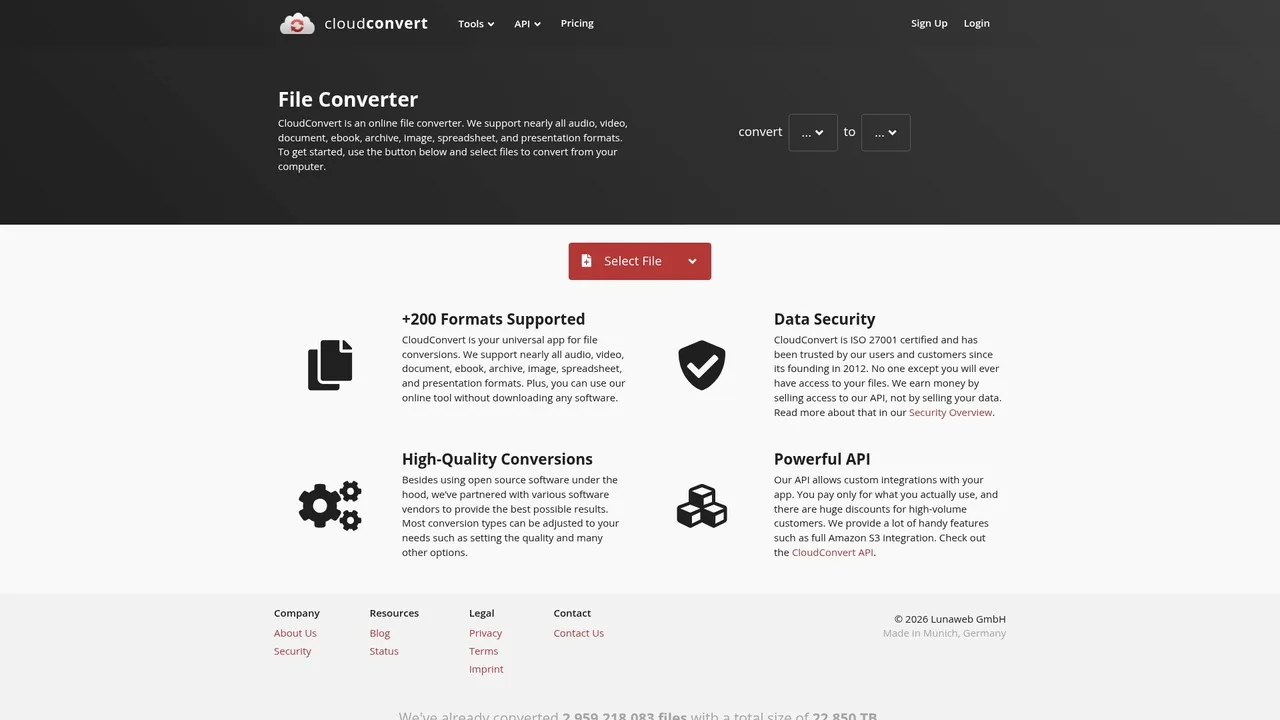
CloudConvert stands out as a versatile web-based solution that handles WebP to JPEG conversion seamlessly alongside hundreds of other format transformations. According to ResizeImage.io Blog, CloudConvert offers 10 free conversions daily, with paid plans starting at $10/month for subscriptions or $18 for 1,000 conversion credits. The interface is intuitive, batch processing is straightforward, and quality settings let you fine-tune compression levels before conversion. It's ideal for occasional users and small teams who need reliability without complexity.
FreeConvert excels at speed and simplicity, processing files quickly with minimal setup. Paid subscriptions start at $12.99/month for 1,500 conversion minutes, scaling up to $29.99/month for 4,000 minutes, with the Pro plan supporting files up to 5GB. This makes it practical for photographers handling larger image libraries. The tool preserves metadata and color profiles well, though advanced users might find the customization options somewhat limited compared to desktop alternatives.
Zamzar brings two decades of industry experience to the table, supporting over 1,200 format conversions. With a free tier limited to 25 MB files and paid plans from $18/month, it's a trusted choice for those needing long-term reliability. The conversion quality is consistent, and batch operations work smoothly, though the interface feels more utilitarian than modern competitors.
For desktop users, XnConvert (free and open-source) offers powerful batch processing with granular control over JPEG compression, color profiles, and metadata. It's particularly useful when converting PNG files or managing large format conversions locally without uploading to cloud services.
| Tool | Best For | Free Tier | Starting Price | Batch Processing |
|---|---|---|---|---|
| CloudConvert | General use, reliability | 10 conversions/day | $10/month | Yes |
| FreeConvert | Speed, large files | Limited | $12.99/month | Yes |
| Zamzar | Long-term trust | 25 MB max | $18/month | Yes |
| XnConvert | Desktop power users | Full (open-source) | Free | Yes |
Online converters suit occasional needs and require no installation, while desktop software becomes worthwhile when you regularly need to convert PNG format or handle similar batch transformations. Consider file size limits, quality preservation, and whether you need local processing versus cloud-based solutions when making your selection.
Quality Tips: Preserving Image Quality During Conversion

The conversion from WebP to JPEG is straightforward, but the real challenge lies in maintaining visual quality while achieving meaningful file size reduction. The relationship between compression and quality is not linear—small adjustments to quality settings can yield dramatic differences in file size without visible degradation to the human eye.
Start with your quality slider. According to Shotkit's analysis, exporting JPEG images at quality level 84 versus 100 produces virtually identical visual results while cutting up to 40% off the file size. For most web use cases, a quality range of 80–90 represents the sweet spot. At 90%, you retain exceptional clarity with significant file reduction; at 80%, you gain even greater compression with almost imperceptible quality loss. If you're working with photographs or detailed imagery, aim for 85–90. For graphics or less critical images, 75–80 works well.
Color space selection matters more than many realize. When you convert JPG to JPEG (or transfer JPG to JPEG formats), ensure your converter maintains the sRGB color space for web compatibility. This prevents unexpected color shifts that occur when converting between color profiles. Metadata preservation is optional but worth considering—stripping EXIF data reduces file size further, though you'll lose camera settings and location information.
Test your conversion settings before committing to batch processing. Export a sample image at different quality levels and compare them side-by-side at 100% zoom. Your eyes will quickly calibrate to acceptable thresholds. Most modern converters display file size estimates in real time, letting you preview the trade-off before finalizing. This iterative approach prevents the frustration of discovering poor quality only after converting hundreds of images.
Troubleshooting Common Conversion Issues
Even with the right settings, conversion hiccups happen. Understanding what goes wrong—and why—saves you time and frustration when working with WebP, JPEG, or other formats like converting PNG to JPG or SVG to PNG.
Failed conversions typically stem from file corruption or unsupported color profiles. If your converter refuses to process a WebP file, verify the file isn't corrupted by opening it in a browser first. Some converters struggle with WebP files containing animation data or unusual metadata. Solution: use a dedicated converter that explicitly supports animated WebP, or strip animation before conversion. Expected result: the file processes without error messages.
Quality loss beyond expectations signals incorrect compression settings or color space mismatches. You've set quality to 85%, yet the output looks muddy or oversaturated. This happens when the converter switches from sRGB to Adobe RGB during processing, shifting colors unpredictably. Always confirm your converter maintains your original color space throughout the process. Test a small sample first—this prevents discovering poor results after batch-processing hundreds of images.
Slow processing on large batches indicates your tool lacks optimization. Modern converters handle bulk operations efficiently; if yours crawls, switch tools. Some online converters throttle speed based on file size or queue position.
Compatibility errors after conversion—where your JPEG won't open in certain applications—usually mean the file header is corrupted or the converter used an obscure JPEG variant. Stick with standard JPEG encoding (baseline or progressive). If you're converting between multiple formats like HEIC to PNG, use converters that support broad format libraries rather than niche tools.
When troubleshooting, isolate variables: test one file, one converter, one setting at a time. This methodical approach pinpoints whether the problem lies with your source file, tool choice, or configuration.
Frequently Asked Questions About WebP to JPEG Conversion
Is JPEG really better than WebP? Not necessarily. WebP typically delivers 25-35% smaller file sizes with comparable visual quality, making it superior for web performance. However, JPEG remains more universally compatible across older devices, email clients, and legacy software. The "better" format depends entirely on your use case—choose WebP for modern web applications and JPEG when broad compatibility matters more than file size.
Will I lose quality converting WebP to JPEG? Some quality loss is inevitable because JPEG uses lossy compression, while WebP may have been saved with different color profiles or compression settings. The degradation becomes noticeable only if you're converting at low quality settings (below 75%). Test your converter on a sample image first to ensure the output meets your standards before batch-processing.
How long does conversion take? Single-file conversions typically complete in seconds. Batch operations depend on file count and your tool's optimization—modern converters handle hundreds of images efficiently, while slower tools may take minutes for large batches. If processing crawls, switch to a more optimized converter.
Can I convert back from JPEG to WebP? Yes, but you're working with already-compressed data. Converting a JPEG to WebP won't recover lost quality from the original conversion, though file sizes may shrink further. This creates a degradation chain, so avoid unnecessary back-and-forth conversions.
What about converting PNG to JPEG or PNG in JPEG format? PNG and JPEG serve different purposes—PNG preserves transparency and detail, while JPEG compresses photographs. Converting PNG to JPEG sacrifices transparency and may introduce artifacts. Only convert when you need maximum compatibility and can accept losing transparency.
Why does my converted JPEG look oversaturated? Color space mismatches during conversion cause this. Your converter may switch from sRGB to Adobe RGB unexpectedly, shifting colors. Always verify your tool maintains your original color space and test small samples before full-batch processing.
Choosing the Right Conversion Method for Your Needs
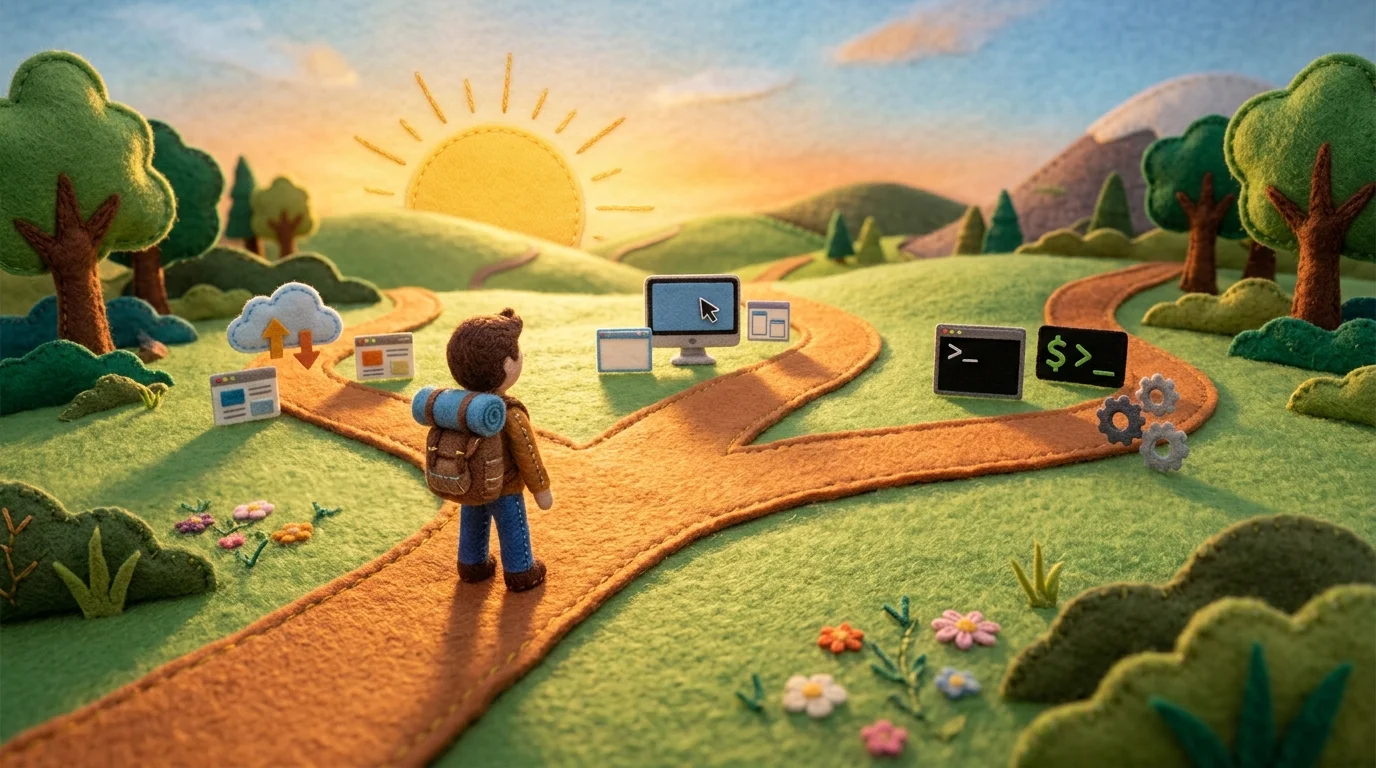
Your decision on how to convert WebP to JPEG ultimately depends on three variables: file volume, quality demands, and technical comfort level. If you're handling a single image or occasional conversions, online tools offer the fastest path—no installation, no learning curve. Desktop software becomes worthwhile when you're processing dozens of files regularly and need batch operations with consistent quality control. For professionals managing high-volume workflows where quality preservation matters most, AI-powered editors like Weezard provide intelligent optimization that maintains visual fidelity while converting efficiently.
Consider your quality requirements carefully. A casual social media post tolerates minor compression artifacts, but product photography or archival work demands stricter settings. Online converters work fine for the former; for the latter, you'll want software that lets you control compression levels and color space handling. If you're converting PNG files to JPEG format alongside WebP conversions, desktop tools often handle multiple format conversions in a single batch, saving time.
The real efficiency gain comes from matching your tool to your workflow. Don't overthink it—start with what's immediately available, test the output quality on a sample file, then scale up once you've confirmed the results meet your standards. Your conversion method should disappear into the background, not become another bottleneck in your creative process.

Ready to jump in?
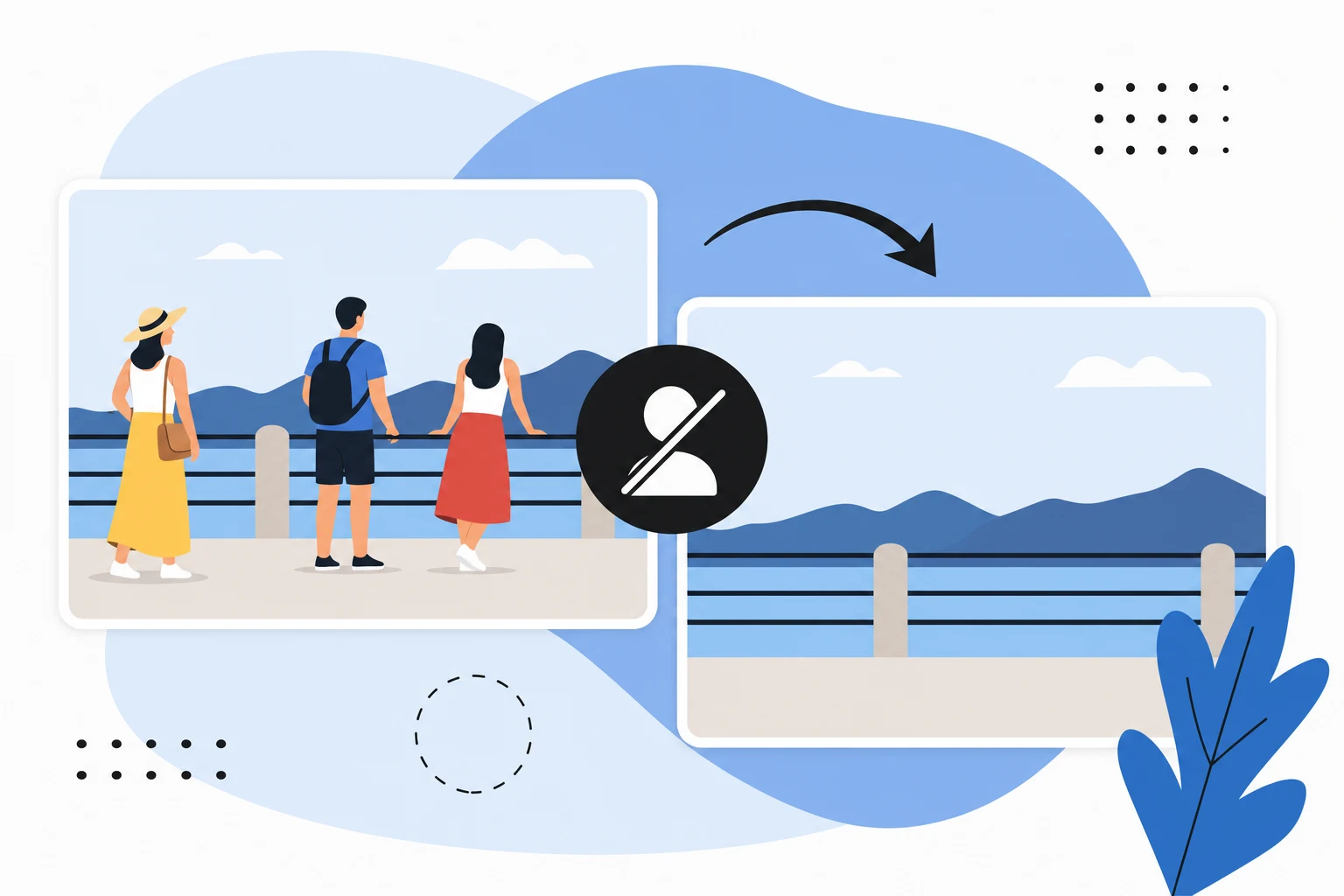
Upload a photo, describe a change and review the result. Try 1 credit after signup and email verification.