Remove Text from Image
Upload a photo and describe the text, date stamp or caption you want removed. AI generates a replacement for the covered area. Check the result closely, especially around faces, lettering and detailed textures.
1K: 1 credit · 2K: 6 credits · 4K: 10 credits · Trial previews have a watermark. See credit packs

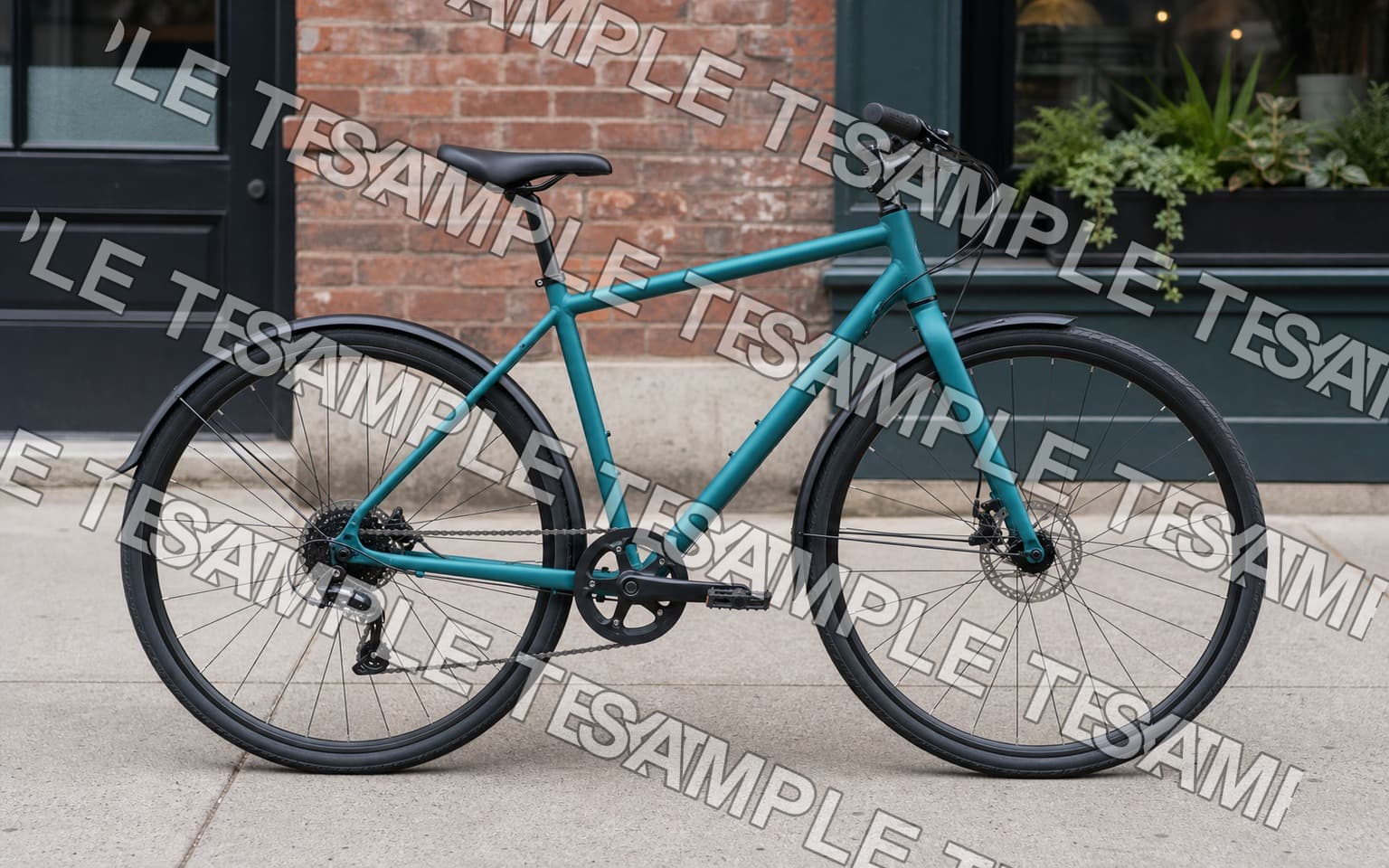
Opening photo editor…
Remove Unwanted Text and Review the Fill
Text can cover a useful part of a photo. Describe the unwanted words and their location, then ask the AI to fill the area using the surrounding scene. Simple backgrounds are a useful starting point; hidden detail is generated, not recovered from the original.
What People Remove Text From
Start with a focused text-removal request.
Watermarks
Request removal of a visible mark from a photo you own or are permitted to edit.
Date stamps
Remove camera date burn-ins from old photos before printing or sharing.
Captions & subtitles
Strip burned-in captions from screenshots, video stills, or social posts.
Signs & billboards
Remove street signs, billboards, or store names from travel and real estate photos.
Product packaging text
Remove an unwanted sticker or overlay while checking that important product information stays accurate.
Logos on apparel
Request changes to visible lettering in a creative image you are allowed to edit.
Document scans
Remove unwanted annotations, header text, or stamps from scanned documents.
Memes & overlays
Remove an unwanted text overlay from an image you are allowed to edit.
Real Results Gallery
See how AI transforms photos with professional editing
Professional AI Editing
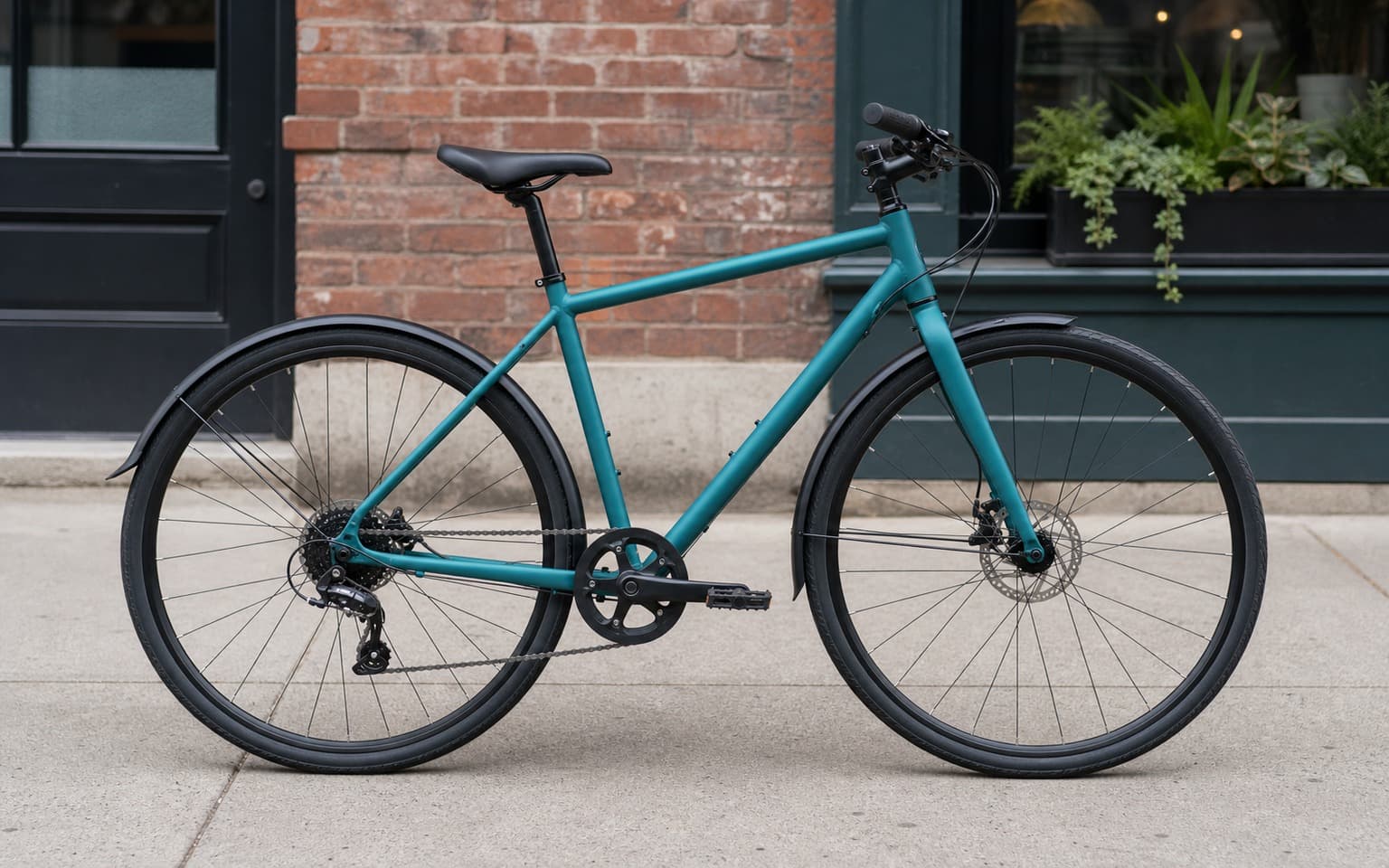
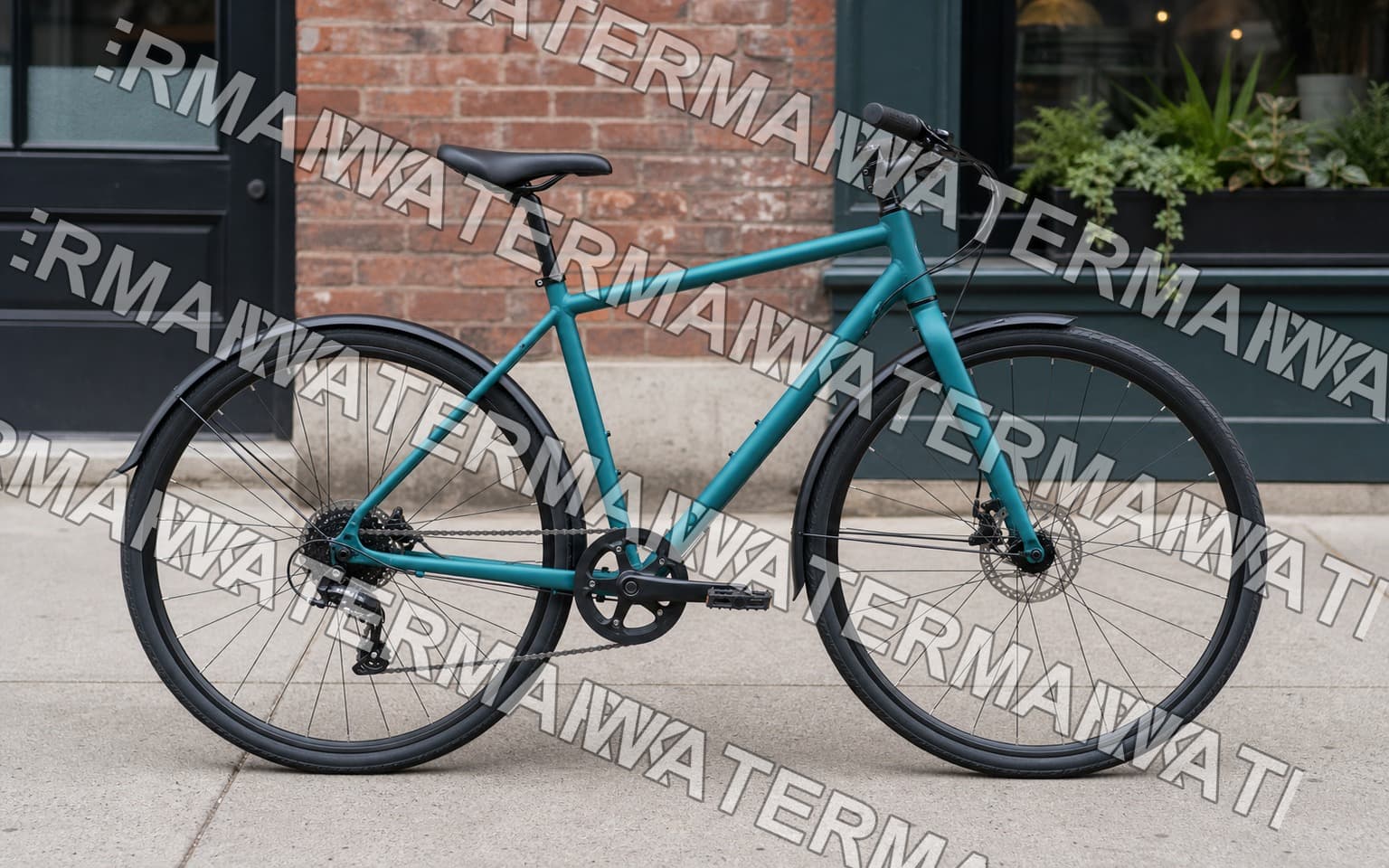
Compare the original and edited image
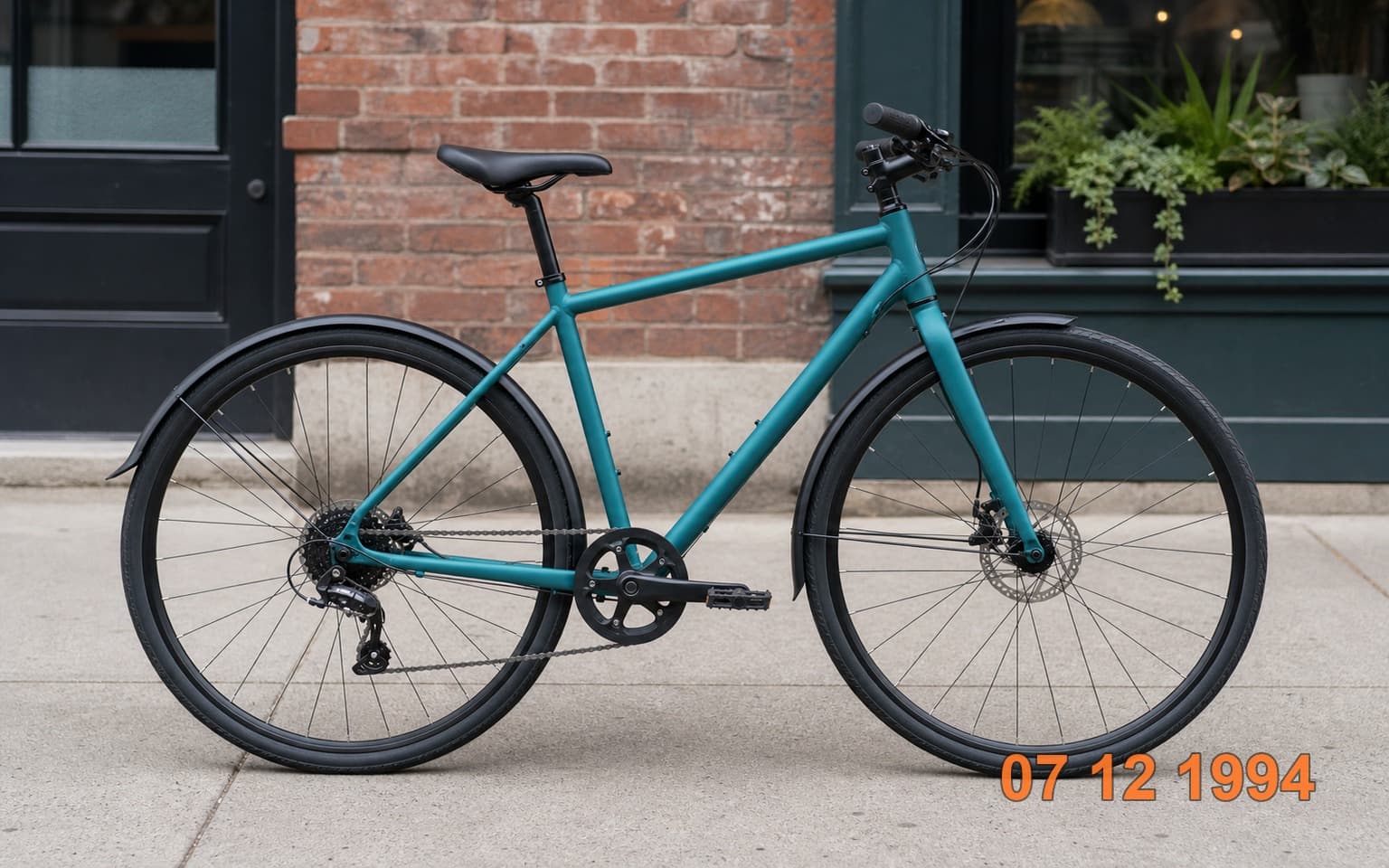
Natural Results
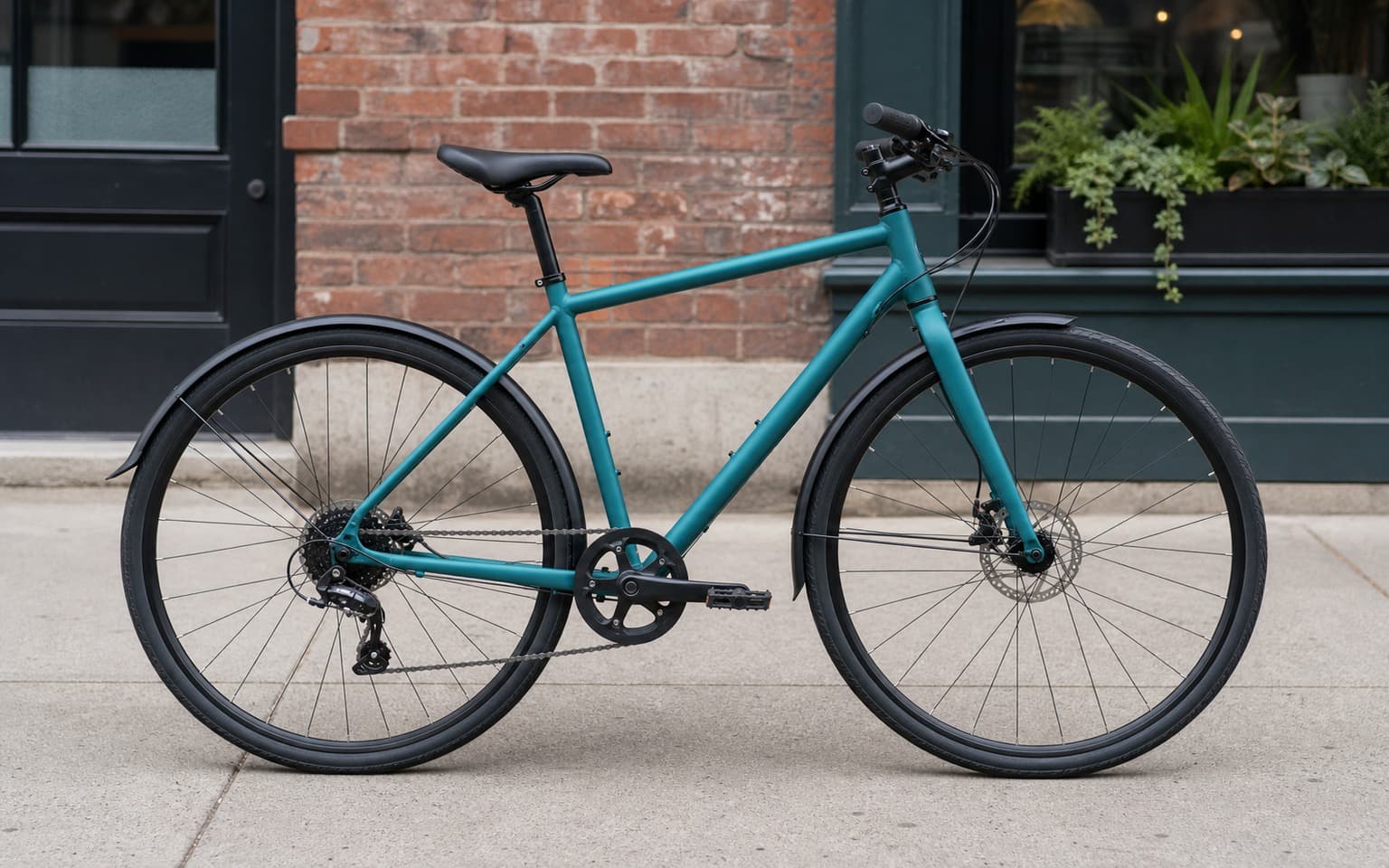
Check edges, lighting, and fine details
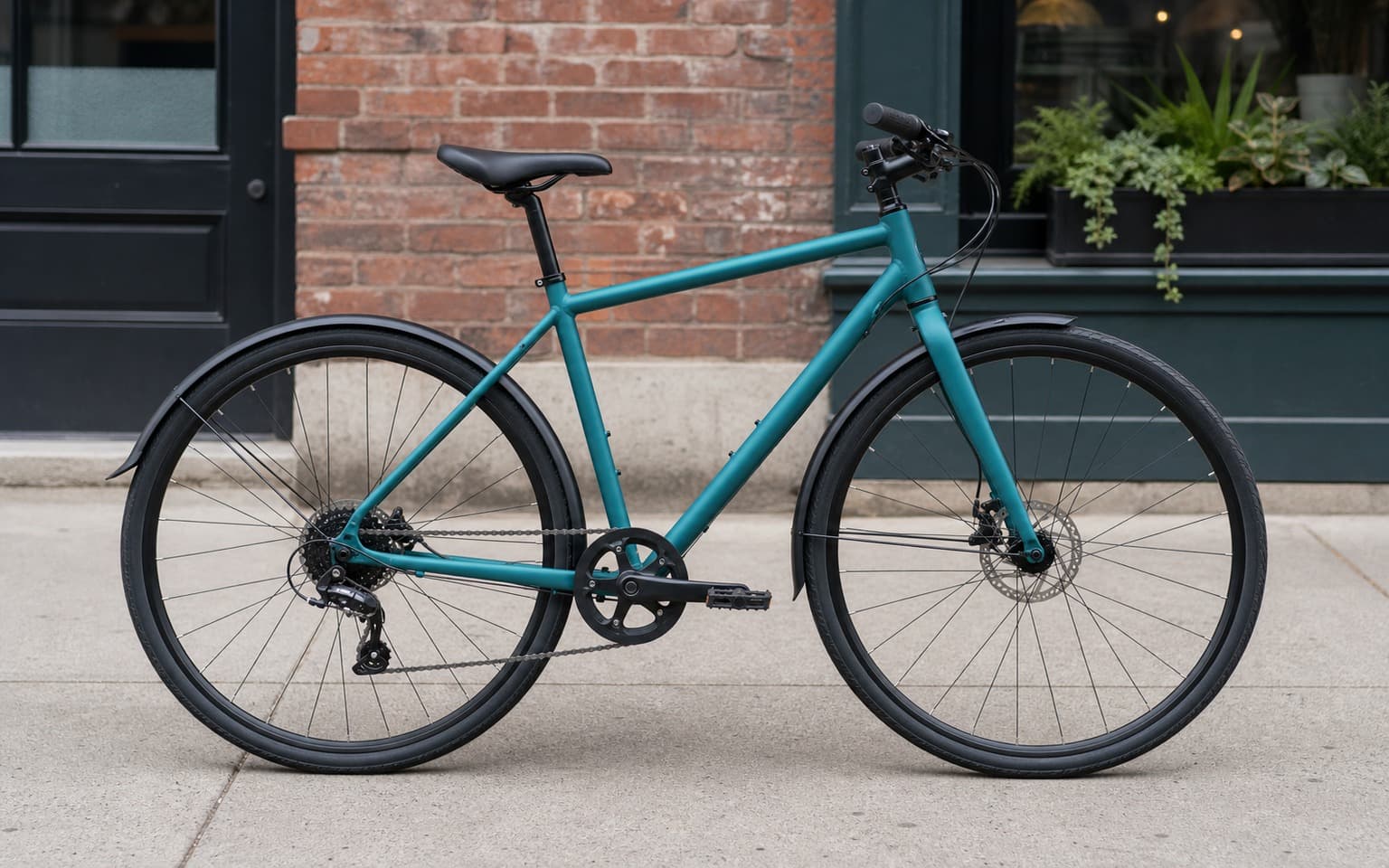
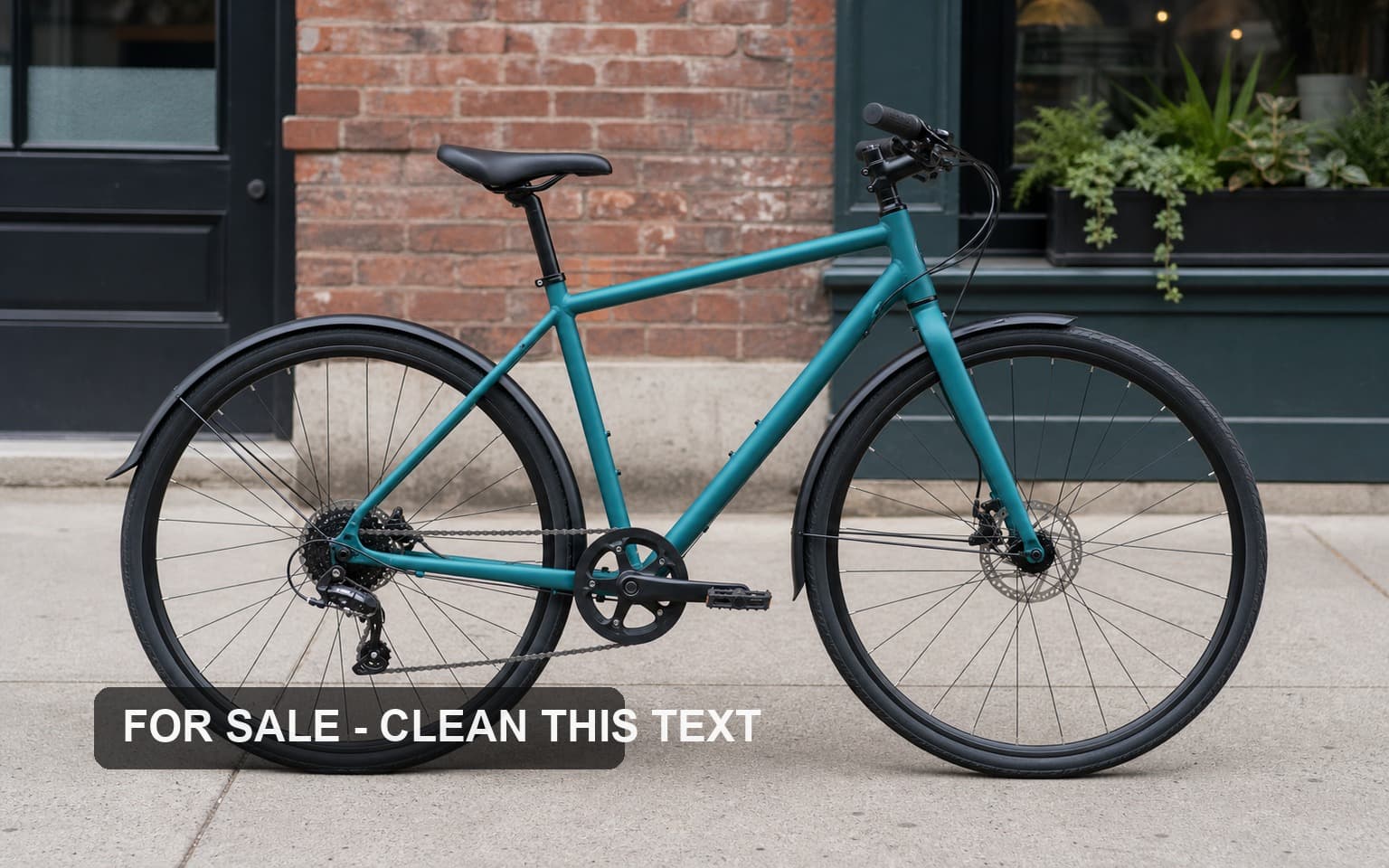
AI Transformation
AI-powered enhancement
Premium Quality
Review the result before downloading
How to Remove Text from an Image
Upload, describe the text, then inspect the result.
Upload your image
Choose a clear photo, screenshot or video still that you are allowed to edit.
Describe what to remove
Try: Remove only the date stamp in the bottom-right corner. Fill the area to match the surrounding grass. Keep everything else unchanged.
Inspect and download
Zoom into the filled area and compare important details with the original. Refine your prompt if the result needs work; each new AI edit uses a credit.
Why Use AI Text Removal
A browser workflow for removing visible text from images.
A practical way to review your edit
Keep your original and check the generated image before you use it.
Start with one photo
Choose a clear source image and describe one specific change. A focused request makes the result easier to compare with your original.
Review the important details
Compare faces, lettering, edges and other important details with the original. AI can change parts of an image you asked it to preserve.
Choose the result before exporting
Each AI edit uses 1 credit at 1K. Your first credit is free after signup and email verification. Free exports have a watermark; paid credits unlock watermark-free exports.
Questions & answers
How do I remove text from a photo?
Upload the photo and describe the unwanted text and its position. Ask to preserve everything else, generate an edit, and inspect the result before downloading.
Will the background stay exactly the same?
No exact preservation is guaranteed. The model generates replacement detail and may alter other parts of the picture. Plain backgrounds are a useful starting point; check faces, repeating patterns and small text carefully.
Can I remove camera date stamps?
Yes, you can request removal of a visible date stamp. Describe the corner and color of the stamp, then inspect the filled area against the original.
Can I remove subtitles from a video?
You can edit a screenshot or still image from a video. This page does not process a video timeline or remove subtitles across moving frames.
Can I remove text in different languages?
Describe the visible writing and where it appears. You can request removal of text in different scripts; results depend on its size, placement and the surrounding image.
Is text removal free?
AI edits cost 1 credit at 1K, 6 credits at 2K or 10 credits at 4K. Your first credit is free after signup and email verification. Free exports carry a small weezard.app watermark; paid credits unlock watermark-free exports.
When should I use a manual editor?
Use a manual editor when you need precise control over affected pixels or must preserve fine details exactly. Weezard provides a prompt-based editing workflow, with generated results that need review.
How to Remove Text from an Image with AI
To remove text from an image, upload the picture and describe which words should disappear and where they are. For example: “Remove the white caption across the bottom. Continue the wall texture behind it. Keep the sign on the door unchanged.” A specific request is easier to review than “clean up this image.”
Date stamps and corner captions
Start with text over a plain wall, sky or other simple background. Ask to remove only the date or caption, and inspect the resulting texture. On older photos, compare nearby faces and clothing too: the model may modify details outside the area you described.
Screenshots and video stills
Upload a still image to remove a subtitle or overlay. This tool edits images, not a video timeline. If the text covers a face, a hand or small printed details, the AI must invent what is behind it. It cannot recover the original hidden pixels. A clean frame from the source video is preferable when available.
Signs, labels and text you want to keep
Name both the text to remove and the writing to preserve. For a product photograph, this might be: “Remove the sale sticker in the top-left background. Keep the product label, logo and all packaging text unchanged.” Check that product details have not changed before publishing.
Watermarks
For a photo you own or are permitted to edit, describe the visible mark and its location. When you have a licensed original, download that file first: it avoids the need to reconstruct covered detail. See the watermark remover for the related workflow.
How to judge the result
Look for faint text residue, broken patterns, soft patches and changes to nearby objects. Compare with the original at a useful zoom level. A plausible replacement is not proof that the scene is accurate. If the text crosses something important, use a clean original or a manual editor where you can control the affected pixels.
Copy-paste prompts
Camera date stamp: Remove only the orange date stamp in the bottom-right corner. Continue the surrounding background naturally. Keep the people and their clothing unchanged.
Caption over a wall: Remove the white caption across the lower wall. Match the wall color and texture. Keep the furniture and all other text unchanged.
Product sale sticker: Remove the sale sticker beside the product. Keep the product shape, color, logo and label text unchanged. Fill only the background where the sticker was.
Related editing tasks
Use object removal for unwanted physical objects, photo restoration for faded or damaged pictures, and background replacement for a new backdrop. The background prompt library offers ready-to-use wording for that next step.
AI edits cost 1 credit at 1K, 6 credits at 2K or 10 credits at 4K. Your first credit is free after signup and email verification. Free exports carry a small weezard.app watermark; paid credits unlock watermark-free exports.
Next step
Related AI photo tools
Choose the tool that matches your next photo edit.
Remove objects from photos
Erase photobombers, clutter, and unwanted items with the same AI fill.
AI photo editor online
Continue with enhancement, background, or restoration edits in the full editor.
Change the background
Replace white, transparent, studio, or custom backgrounds after cleaning the text.
AI watermark remover
Watermarks are blended into the photo, not laid on top — they need the dedicated pass.
Put it on a white background
Marketplace-ready #FFFFFF with the contact shadow kept, after the text is gone.
Expand the image canvas
Extend the frame to 16:9 or 9:16 once the unwanted text is out of the crop.
Ready to Transform Your Photos?
Try an edit on your own photo and inspect the result before downloading.
1 free credit after signup and verification • No card required