May 17, 2026
How to Remove Background From an Image: Complete Guide for Creators

Removing backgrounds from images has become essential for creators, marketers, and real estate professionals who need polished, professional visuals. Whether you're preparing product photos for e-commerce, creating social media content, or editing real estate listings, learning how to remove background from an image opens up countless creative possibilities. A clean, distraction-free background can transform an ordinary photo into a marketing asset that captures attention and drives engagement.
Quick Answer:
The fastest way to remove backgrounds from images is using AI-powered editing tools that automatically detect and erase the background in seconds. Upload your image, let the AI do the heavy lifting, and download your result—no manual selection or technical skills required. For more control, desktop software and online editors offer layer-based removal for complex images.
Background removal matters because it gives you complete creative control. Instead of being locked into whatever backdrop was present when you took the photo, you can place your subject on clean white backgrounds, transparent backgrounds, or entirely new scenes. This flexibility is invaluable for e-commerce sellers who need consistent product presentation, content creators building branded visuals, and professionals who want their work to look intentional and polished.
This guide walks you through every method available—from one-click AI solutions to precise manual techniques. You'll discover which approaches work best for different image types, learn the common pitfalls that trip up creators, and understand when to use transparent backgrounds versus solid ones. By the end, you'll have a complete toolkit for background removal that fits your workflow and creative needs.
Table of Contents
- 5 Best Methods to Remove Backgrounds From Images
- AI-Powered One-Click Background Removal
- Browser-Based Tools for Quick Edits
- Desktop Software for Advanced Control
- Mobile Apps for On-the-Go Editing
- Hybrid Approach: AI + Manual Refinement
- Step-by-Step Guide: Remove Background Using AI Image Editors
- Uploading and Selecting Your Image
- Activating the Background Removal Feature
- Fine-Tuning Edges and Refining Results
- Exporting Your Image With Transparency
- Comparing AI Tools vs. Manual Background Removal Methods
- Real-World Use Cases: When You Need Background Removal
- Common Mistakes When Removing Image Backgrounds and How to Avoid Them
- Start Removing Backgrounds Today: Choose Your Best Approach
5 Best Methods to Remove Backgrounds From Images
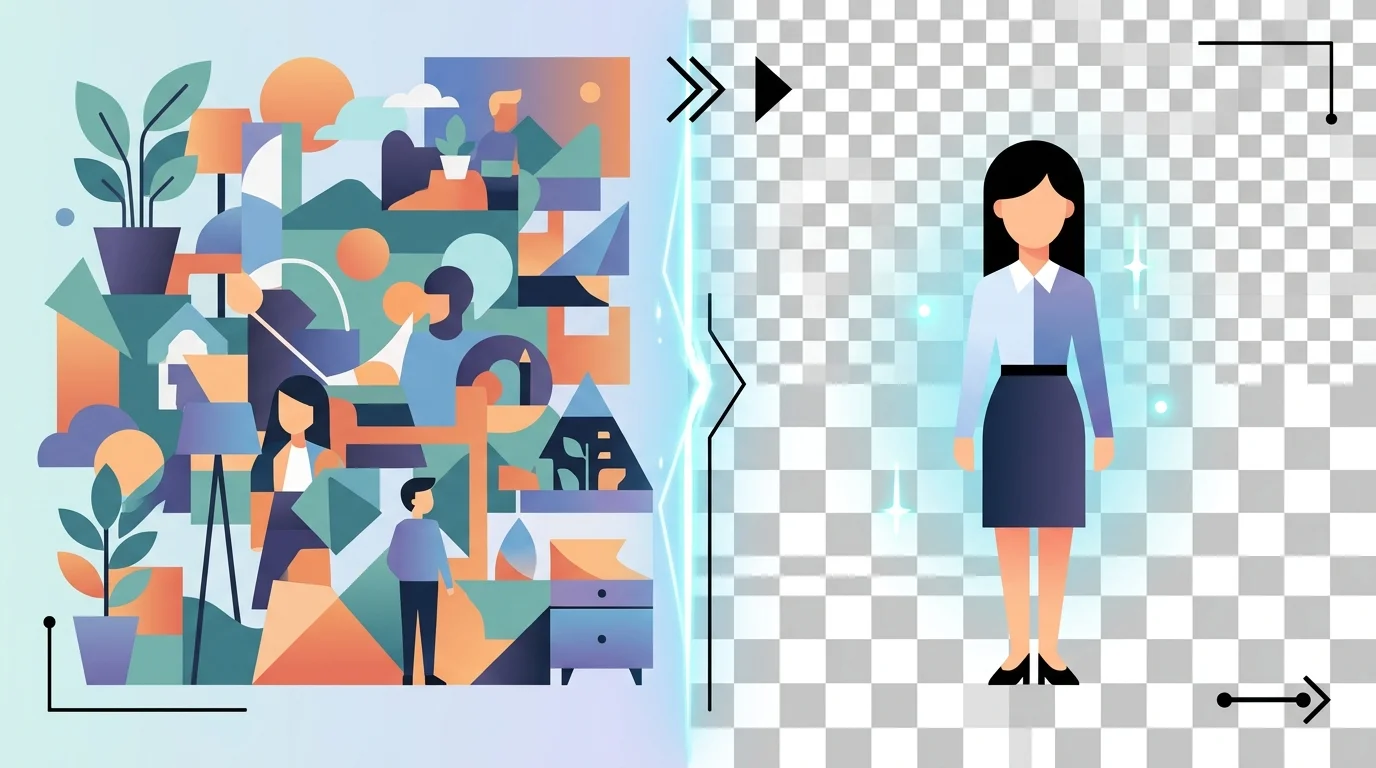
Background removal has evolved dramatically over the past few years, moving from a skill that required hours of manual masking to something that takes seconds. The method you choose depends on your workflow, the complexity of your image, and how much control you need over the final result. Here are five approaches that cover everything from fully automated AI solutions to precision desktop editing.
AI-Powered One-Click Background Removal
Modern AI background removal tools have become the go-to choice for creators who value speed and consistency. These systems use deep learning models trained on millions of images to understand object contours, textures, and edge information—allowing them to detect and isolate your subject in 1-5 seconds per image. You simply upload your photo, and the AI automatically generates a clean transparent background without any manual selection required.
This method is ideal for e-commerce sellers, content creators managing high volumes of product photos, and anyone who needs results fast. According to QYResearch Market Report, approximately 60% of users prefer automated AI solutions over manual editing for background removal. Tools like Weezard handle complex subjects—hair, fur, intricate clothing—with remarkable accuracy, making them reliable even when your image has fine details that would normally require careful manual work.
Browser-Based Tools for Quick Edits
Online editors eliminate the friction of installation and software compatibility. You upload your image directly to a web browser, the tool processes it, and you download the result—all without leaving your browser window. These platforms range from completely free options to freemium models with premium features like batch processing or higher resolution exports.
Browser-based tools work best for occasional users, quick social media edits, and situations where you're working across multiple devices. They're accessible from any computer with an internet connection, making them perfect for remote teams or creators who work from different locations. The trade-off is that processing speed depends on server load, and you're uploading your images to external servers—something to consider if you're working with confidential or proprietary content.
Desktop Software for Advanced Control
When you need pixel-perfect precision or want to handle complex backgrounds with multiple layers, desktop applications give you granular control that cloud tools can't match. Professional software like Photoshop, GIMP, or specialized background removal plugins let you manually refine edges, adjust transparency levels, and combine multiple techniques in a single workflow.
Desktop software is essential for professional photographers, graphic designers, and anyone working with high-stakes images where imperfection is visible. You can zoom in to 400% and clean up individual pixels, use layer masks for non-destructive editing, and combine background removal with other adjustments—color correction, object removal, or composition changes—all in one session. The learning curve is steeper, but the control is unmatched.
Mobile Apps for On-the-Go Editing
Smartphone apps bring background removal to your pocket, letting you edit photos immediately after shooting them. Most mobile background removal apps use the same AI technology as desktop tools but optimize the interface for touch screens and smaller displays. Many offer one-tap removal with optional manual refinement tools.
Mobile apps suit creators who shoot and edit on the same device, social media managers who need quick turnarounds, and anyone who values convenience over advanced features. They're particularly useful for real estate teams photographing properties and needing to clean up backgrounds before posting listings. The limitation is that most mobile apps compress or resize images during processing, so they're less suitable for print-quality work.
Hybrid Approach: AI + Manual Refinement
The most professional workflow combines automated AI removal with selective manual touch-ups. Start with an AI tool to handle 95% of the work in seconds, then use desktop software or a browser editor to refine edges, remove stray pixels, or adjust transparency where the AI made mistakes. This approach gives you speed without sacrificing quality.
This method works for creators who need both efficiency and precision—product photographers, portrait editors, and anyone preparing images for high-visibility use. You get the time savings of automation while maintaining the control of manual editing. Creating a transparent background often involves this hybrid process, especially when your subject has challenging edges or when you're working with professional photography standards.
Step-by-Step Guide: Remove Background Using AI Image Editors
Uploading and Selecting Your Image
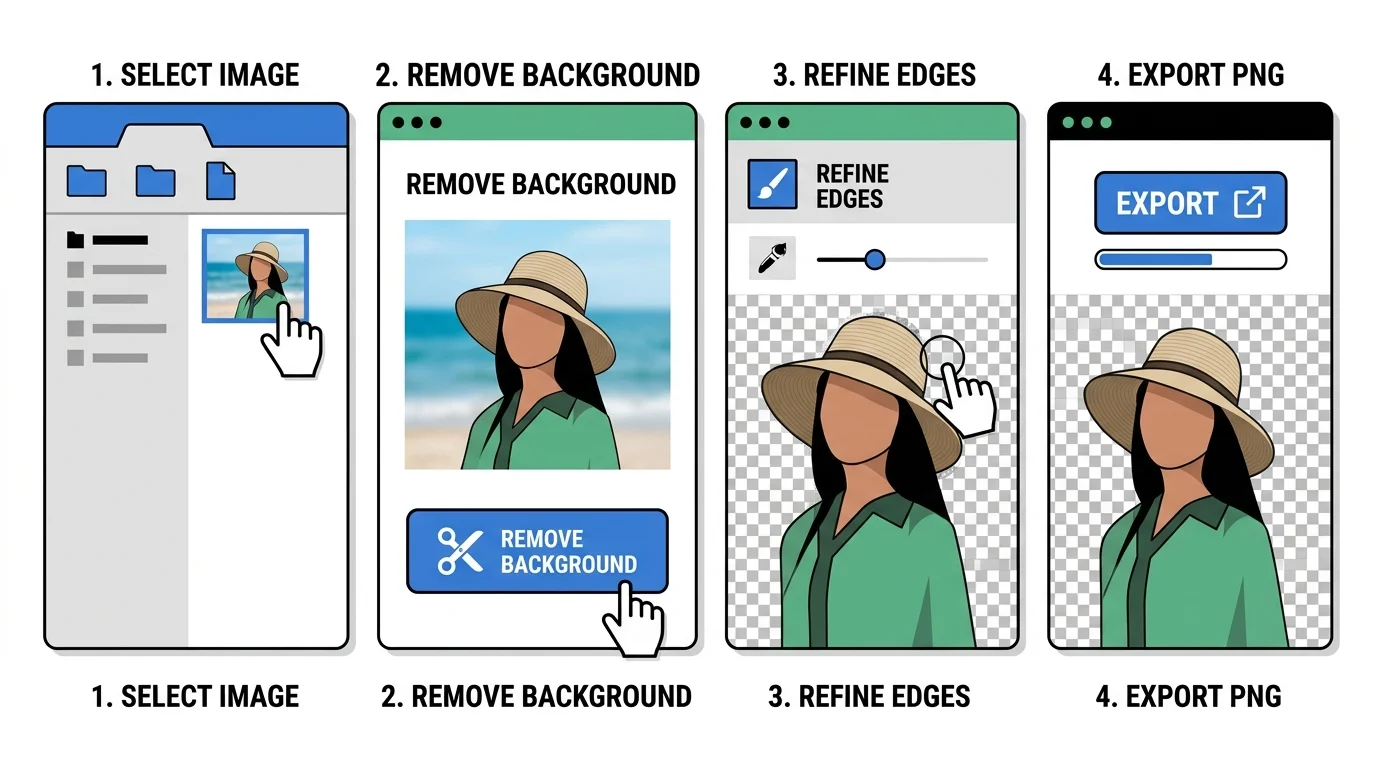
Start by choosing a high-quality image with clear separation between your subject and background. The best candidates are photos where the subject is well-lit and distinct from the background—product shots, portraits, or property photos work exceptionally well. Most AI editors accept common formats including JPG, PNG, WebP, and HEIC, though PNG and JPG are most universal. File size typically doesn't matter much since cloud-based editors handle compression automatically, but sharper source images yield cleaner results. Once you've selected your file, upload it to your chosen AI editor by dragging it into the interface or clicking the upload button. The image will process within seconds, and you'll see a preview of your original photo ready for editing.
Activating the Background Removal Feature
Locate the background removal tool—usually labeled "Remove Background," "Background Eraser," or represented by a magic wand icon in the toolbar. Click it, and the AI immediately analyzes your image to detect edges, textures, and subject boundaries. Within 1-3 seconds, the tool automatically removes the background and displays a preview with transparency (shown as a checkerboard pattern). Most modern AI editors handle this detection remarkably well, even with complex subjects like hair, fur, or intricate product details. You'll see the result instantly without needing to manually trace or select anything.
Fine-Tuning Edges and Refining Results
If the AI left stray pixels, rough edges, or accidentally removed parts of your subject, use the refinement tools to make adjustments. Most editors offer a brush to manually restore removed areas or erase remaining background fragments. Zoom in on problem areas—typically around hair, thin objects, or complex textures—and make targeted corrections. This step usually takes just 30 seconds to a minute for most images. The hybrid approach of letting AI handle the heavy lifting, then creating a transparent background with manual polish, ensures professional-quality results without spending hours on manual selection.
Exporting Your Image With Transparency
Once satisfied with your edits, export the image in PNG format to preserve transparency. PNG is the standard for transparent backgrounds and works across web, social media, and design software. Choose your export settings—most editors let you adjust quality and compression. Download the file directly to your device. If you need the image in other formats (JPG with a solid background, WebP for web optimization), most editors offer quick conversion options before download. Your edited image is now ready for use in presentations, e-commerce listings, social media, or design projects.
Comparing AI Tools vs. Manual Background Removal Methods
The choice between AI-powered background removal and traditional manual editing comes down to your priorities: speed, precision, cost, and skill level. Each approach has distinct advantages and trade-offs that matter depending on your workflow and image complexity.
| Dimension | AI Background Removal Tools | Manual Editing (Photoshop, GIMP) |
|---|---|---|
| Speed | 2–5 seconds per image | 4–7 minutes per image |
| Learning Curve | None—instant results | 20–40 hours to reach basic proficiency |
| Cost | Free tier available; $5–15/month for premium | One-time ($55–680) or subscription ($10–55/month) |
| Precision | Excellent on standard subjects; struggles with fine details (hair, fur) | Pixel-perfect control; time-intensive for complex edges |
| Best For | E-commerce, social media, batch processing, quick turnarounds | Fine art, intricate selections, full creative control |
| Ease of Use | Drag-and-drop; no technical skills required | Steep initial learning; requires practice |
| Edge Cases | Transparent fabrics, overlapping objects, thin strands | Handles any scenario with enough time |
When to choose AI tools: You need results fast and your images feature clear subjects against defined backgrounds. E-commerce teams, real estate professionals, and content creators benefit most from AI's speed—processing dozens of product photos in minutes rather than hours. According to research from SuperAGI, AI background removal reduces editing time by 80% compared to manual selections.
When to choose manual editing: You're working with complex, artistic images where pixel-level precision matters, or your subject has intricate details like flowing hair or delicate textures. Manual tools give you absolute control but demand time and skill investment.
The hybrid approach: Many professionals use both. AI handles the bulk removal in seconds, then manual touch-ups refine edges in problem areas. This combines speed with polish—you get 95% of the work done instantly, then spend a minute perfecting details. Tools like Weezard bridge this gap by offering AI-powered removal with built-in manual refinement brushes, eliminating the need to switch between software.
For batch jobs, transparent backgrounds, or quick social media edits, AI wins decisively. For gallery-quality work or highly stylized imagery, manual control remains essential.

Real-World Use Cases: When You Need Background Removal
Background removal isn't just a creative preference—it's a business requirement across multiple industries. Understanding where and why this skill matters helps you prioritize your editing workflow and choose the right tools for your specific needs.
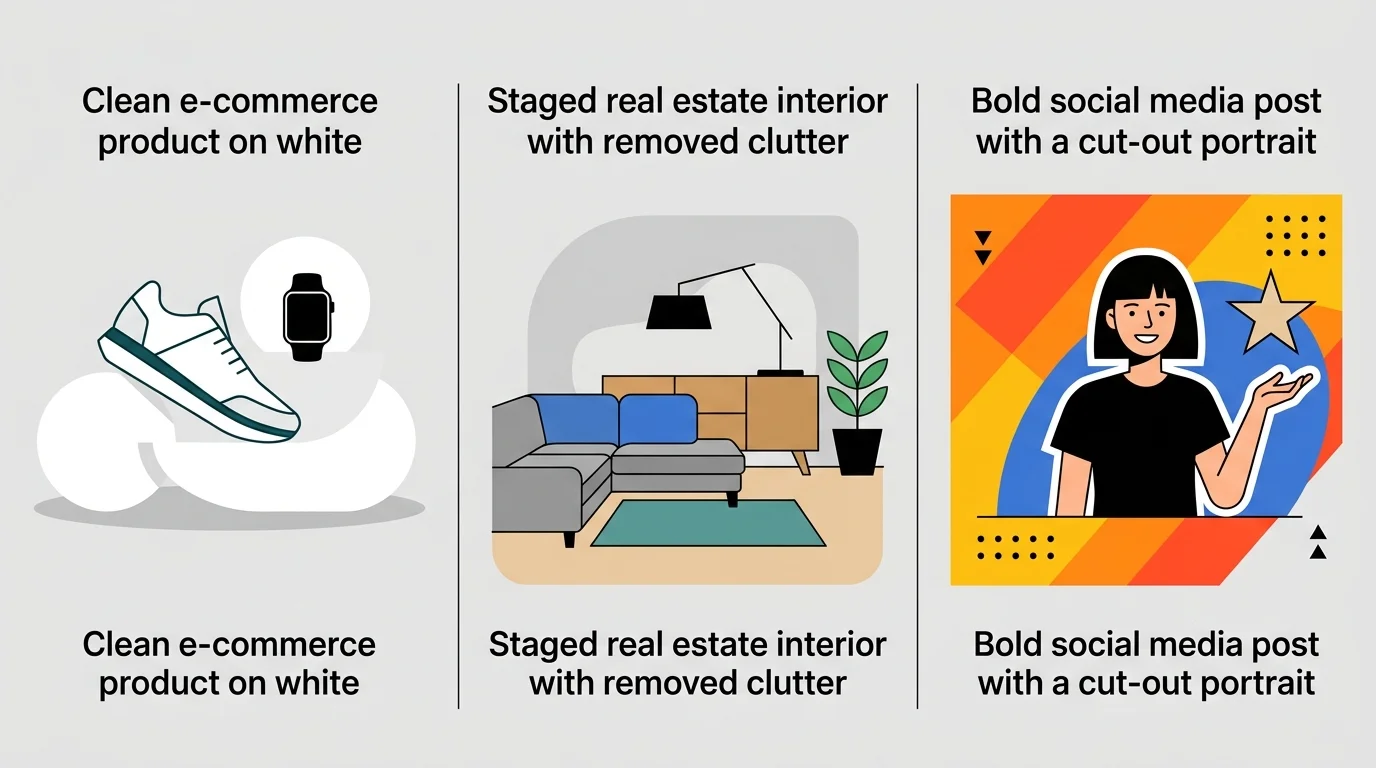
E-commerce product photography stands as the dominant use case. According to research from QYResearch and Photta, e-commerce product images represent 42% of AI background removal revenue in 2025. Platforms like Amazon require primary product images to have a pure white background (RGB 255,255,255) with the product filling at least 85% of the frame, while eBay recommends solid white or light grey backgrounds. Product images with clean white backgrounds convert 20–30% better than photos with cluttered backgrounds, making background removal essential for sellers managing dozens or hundreds of SKUs. About 80% of e-commerce brands now use specialized image-editing software for bulk processing, with AI-assisted tools rising 50% in adoption over recent years.
Real estate listings demand clean, professional visuals where the property—not the surrounding clutter—commands attention. Removing distracting backgrounds helps buyers focus on architectural features, room layouts, and condition. Virtual staging and composite photography often require transparent or replacement backgrounds to showcase potential.
Social media graphics and marketing materials benefit from background removal to create cohesive branded content. Whether you're designing Instagram posts, LinkedIn headers, or email campaigns, isolated subjects on transparent or solid backgrounds allow for flexible composition and consistent branding. You can create transparent backgrounds instantly and repurpose the same product or portrait across multiple layouts.
Professional headshots and portraits require polished, distraction-free backgrounds. Corporate profiles, author bios, and talent portfolios all benefit from clean separation between subject and environment. This is where pixel-level precision matters—hair strands, fabric texture, and facial edges need careful handling.
Design mockups and branding assets often start with product or lifestyle photography that needs isolation. Removing backgrounds lets designers layer images onto mockups, presentations, or promotional materials without awkward halos or color fringing that breaks the illusion.
Common Mistakes When Removing Image Backgrounds and How to Avoid Them
Even with AI-powered tools handling most of the heavy lifting, several common photo editing errors can undermine your results. Understanding these pitfalls helps you produce polished, professional images consistently.
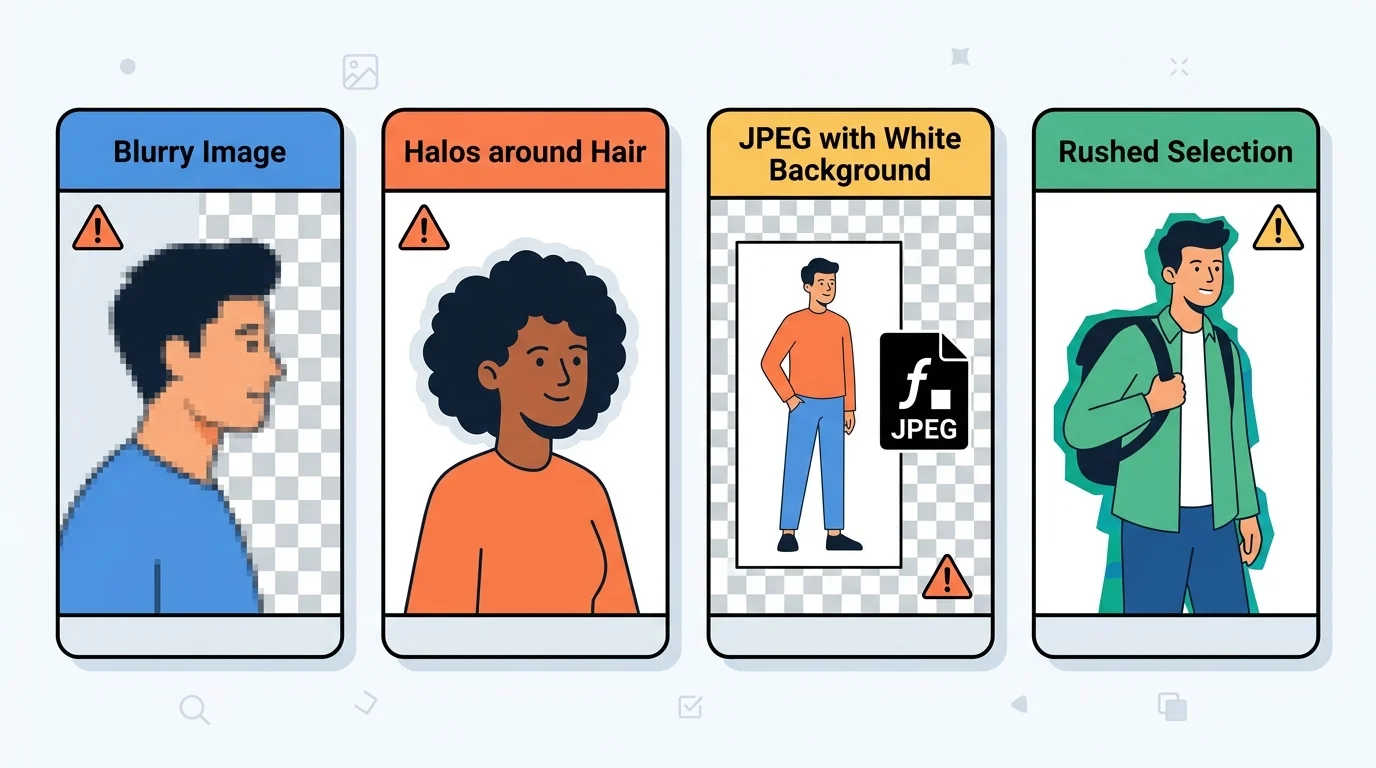
Using low-resolution or poor-quality source images is the most frequent mistake. When you start with a blurry, compressed, or heavily pixelated image, no background removal tool—AI or manual—can recover lost detail. The algorithm works with what it has, and degraded input produces degraded output. Always shoot or source images at the highest resolution available. For product photography and portraits, aim for at least 2000×2000 pixels. If you're working with existing assets, check file size and clarity before processing.
Ignoring edge detail loss and color fringing happens when creators don't inspect their results closely. Hair strands, fabric edges, and fine details can appear jagged or surrounded by a thin halo of the original background color. This breaks the illusion when you place the subject on a new background. After removal, zoom in to 100% and examine edges carefully. Many AI tools, including Weezard, allow you to refine edges or adjust transparency levels to eliminate fringing.
Forgetting to save in the correct format causes problems downstream. Removing a background requires saving as PNG (which preserves transparency) rather than JPEG (which flattens to a solid color). If you save as JPEG, your transparent background becomes white or another default color, defeating the purpose entirely. Always confirm your export settings before finalizing.
Skipping transparency verification means you won't catch issues until you've already integrated the image into a design. Open your exported file in an image viewer or design tool and verify the background is truly transparent—you should see a checkerboard pattern or be able to place it over different backgrounds without white edges showing through.
Rushing the selection process with AI tools that require manual input leads to incomplete removals. Even AI-assisted editors sometimes miss small areas or include unwanted portions of the background. Take time to review and make minor adjustments before finalizing, ensuring clean separation between subject and environment.
Start Removing Backgrounds Today: Choose Your Best Approach
Background removal has transformed from a specialized skill into an accessible everyday task, thanks to modern AI image editing tools. Whether you're a content creator preparing social media assets, a marketer building product catalogs, or a real estate professional showcasing properties, the ability to isolate your subject from its surroundings is now within reach—regardless of your technical skill level.
The method you choose depends on three simple factors: your timeline, your budget, and the precision your project demands. If you need results in seconds and your images have clear subject-background separation, AI-powered tools deliver immediately. If you're working with complex edges, fine hair details, or intricate product photography, you might invest slightly more time in manual refinement or hybrid approaches. The good news is that even hybrid workflows are faster than they were five years ago.
At Weezard, we've built our background removal feature to handle the most common creator scenarios—product shots, portraits, and lifestyle imagery—with minimal manual adjustment. But the broader point stands: you no longer need to choose between speed and quality. Start with an AI tool, refine as needed, save as PNG to preserve transparency, and you're done. The barrier to professional-looking visuals has never been lower. Pick the approach that fits your workflow, test it on a sample image, and move forward with confidence.


Ready to jump in?
Upload a photo, describe a change and review the result. Try 1 credit after signup and email verification.