Apr 21, 2026
How to Create a Transparent Background: AI Tools That Make Photos See-Through

Removing backgrounds from photos manually is tedious, time-consuming, and often produces imperfect results—especially around fine details like hair or transparent objects. Whether you're preparing product images for e-commerce, creating social media graphics, or designing professional materials, the need for clean transparent backgrounds is universal. Fortunately, AI-powered background removal has transformed this once-laborious task into a matter of seconds.
Quick Answer: Use AI background removal tools to instantly create transparent images by uploading your photo and letting machine learning algorithms detect and remove the background. Most modern tools work in one click, preserving fine details automatically. You can then download your image as PNG to maintain transparency across web, print, and design projects.
This guide walks you through everything you need to know about creating transparent backgrounds with AI. You'll discover how these tools work, explore the best options available, and learn practical techniques for handling tricky scenarios like complex edges and semi-transparent elements. We'll also cover how to export and use your transparent images effectively, whether you're building a product catalog or crafting social media content. By the end, you'll understand not just how to make images transparent, but when and why AI solutions outperform traditional photo editing methods.
Table of Contents
- Why Transparent Backgrounds Matter for Your Images
- How AI Background Removal Works: The Technology Behind Transparent Images
- Step-by-Step Guide: Making Photos Transparent Using an AI Creator
- Best Practices for Creating High-Quality Transparent Images
- Common Use Cases: Where Transparent Images Deliver Real Value
- Key Features to Look for in a Transparent Background Creator
- Frequently Asked Questions About Creating Transparent Images
- Start Creating Transparent Images Today with AI
Why Transparent Backgrounds Matter for Your Images
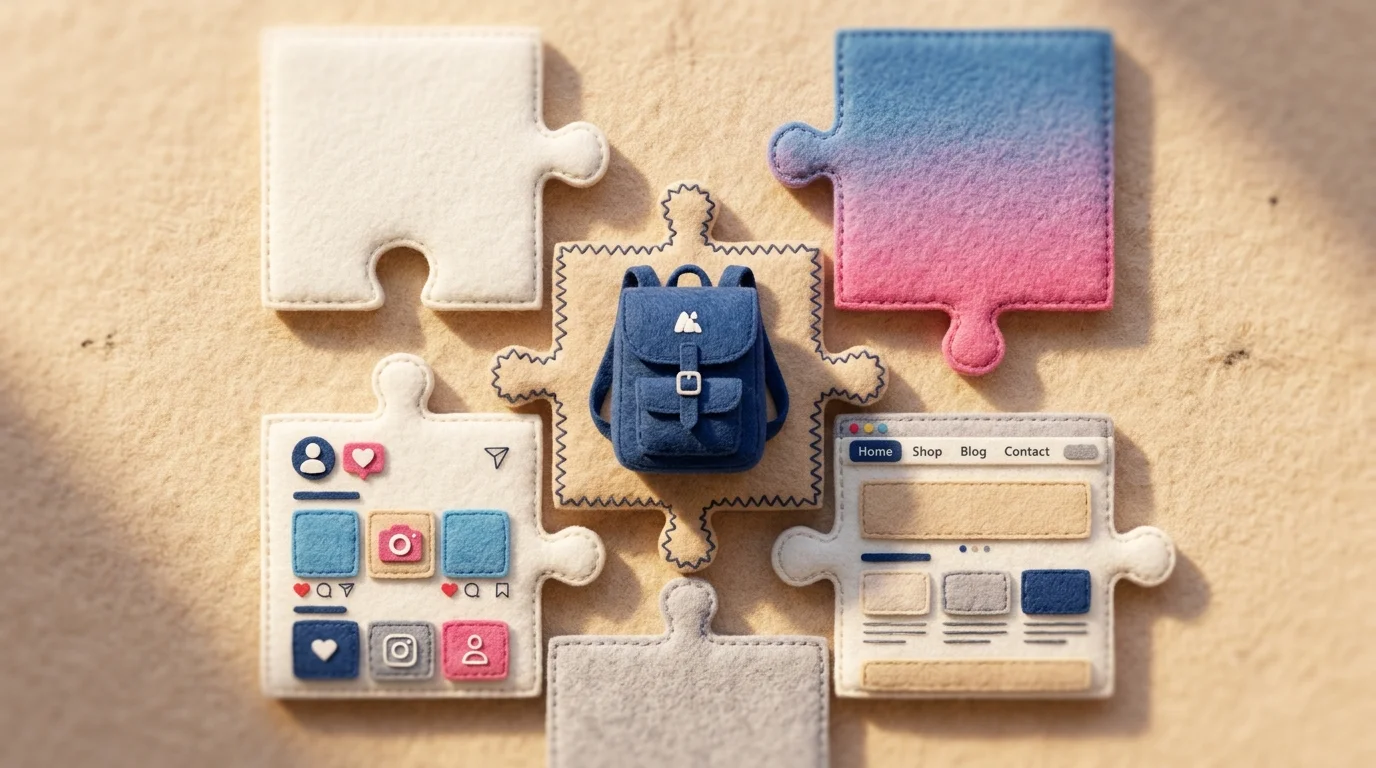
Transparent backgrounds solve a fundamental problem in visual communication: they let your subject shine without competing with environmental clutter. Whether you're selling products, building a brand identity, or crafting social media content, the background of your image directly influences how viewers perceive what matters most.
In e-commerce, the difference is measurable. According to research from eBay and BigCommerce, listings with white or transparent backgrounds receive up to 20 percent more clicks than those with cluttered or colored environments. When a customer is evaluating a product—whether it's jewelry, clothing, or electronics—a clean transparent pic removes visual noise that might distract from the item's actual features. The psychology is simple: less cognitive load means faster purchasing decisions.
For logo design and branding, transparent photos are non-negotiable. A logo with a transparent background adapts seamlessly to any surface—website headers, printed materials, social media profiles, or marketing collateral. You're not locked into one background color or pattern; the logo itself becomes the focal point. This flexibility is why professional designers insist on transparent image formats from the start.
Social media creators benefit similarly. When you create transparent image assets for graphics, overlays, or composite designs, you gain complete control over the final composition. You can layer elements, blend them with different backgrounds, or repurpose the same asset across multiple platforms without the awkward white or colored halos that plague poorly edited images.
Even in professional presentations, transparent photos elevate the polish factor. Rather than inserting a product photo with its original background, a transparent version integrates naturally into your slide design, maintaining visual cohesion and drawing focus to your message rather than the photograph's surroundings.
How AI Background Removal Works: The Technology Behind Transparent Images
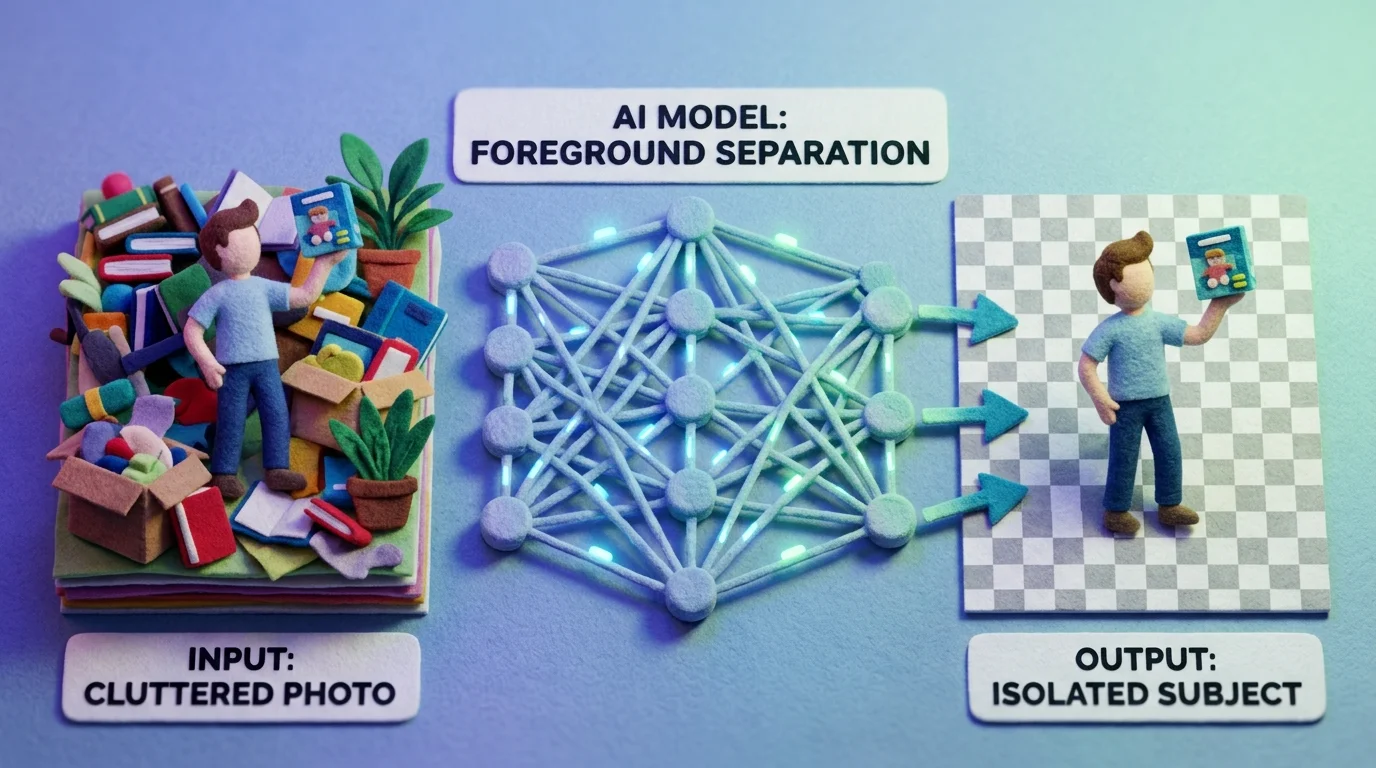
Modern AI background removal relies on deep learning models trained to recognize and isolate subjects from their surrounding environments. Rather than requiring you to manually draw selection paths or adjust tolerance levels, these neural networks analyze pixel data across an entire image simultaneously, understanding context, edges, and spatial relationships in milliseconds. The technology essentially teaches itself what constitutes a "foreground" object—whether that's a person, product, or animal—versus background elements, then creates a precise mask that separates them.
The process works through semantic segmentation, where the AI divides an image into distinct regions and classifies each pixel based on learned patterns. When you upload a photo to a transparent background maker, the model scans millions of training examples to identify similar patterns in your image. It doesn't just look for color boundaries; it understands texture, transparency gradients, and fine details like individual hair strands or fabric folds. This is why modern solutions outperform older edge-detection algorithms that would leave halos or miss delicate details entirely.
According to market research from QYResearch, the global AI background remover market reached approximately $111 million in 2025 and continues expanding rapidly as accuracy improves. The speed advantage is significant—while creating a transparent image manually in Photoshop demands 2-20 minutes depending on complexity, AI tools complete identical work in seconds. Many professionals now use hybrid workflows, letting AI handle the initial heavy lifting, then refining edges manually for critical projects. This combination cuts total editing time by 70-80% compared to doing everything by hand.
The technology continues evolving. Newer models handle challenging scenarios—translucent objects, complex hair, shadows—with increasing sophistication. When you make a picture transparent using these tools, you're leveraging months of computational training compressed into a single-click operation.
Step-by-Step Guide: Making Photos Transparent Using an AI Creator
Creating a transparent picture with an AI tool is straightforward—even if you've never edited an image before. The process typically takes under two minutes from upload to download, and the results rival manual editing that would take significantly longer.
What You'll Need:
- A digital image (JPG, PNG, or WebP format)
- A web browser or mobile device
- No design experience required
- Estimated time: 1–2 minutes
Step 1: Upload Your Image
Start by opening your chosen AI background removal tool and selecting the upload option. Click the upload button and choose your image from your device. The tool accepts most common formats—portraits, product photos, graphics, and even screenshots work well. Once uploaded, the AI begins analyzing your image automatically. You'll see a preview loading within seconds.
Step 2: Let the AI Process the Image
The algorithm scans your photo to identify the subject and separate it from the background. This happens in real-time—you're watching the AI distinguish between your main subject (person, product, object) and everything else. The neural network handles complex details like hair strands, fabric texture, and shadow gradients without manual intervention. Wait for the processing to complete; most images finish within 5–30 seconds depending on complexity and file size.
Step 3: Review the Result
Examine the preview carefully. Check the edges around your subject—they should be clean and precise. Look for any missed areas, especially around fine details. If the background removal looks accurate, you're ready to download. If you spot issues, some tools offer refinement options to adjust the edge detection or manually touch up specific areas.
Step 4: Download Your Transparent Image
Select the download option and choose PNG format to preserve transparency. PNG files maintain the transparent background when you use them in design software, on websites, or in presentations. JPG format won't work for this purpose since it doesn't support transparency.
Pro Tips by Image Type:
- Portraits: Ensure good lighting and clear separation between subject and background for best results
- Products: Solid or simple backgrounds process faster than cluttered ones
- Graphics: AI handles logos and illustrations effectively, especially those with defined edges
For more advanced editing after background removal, you might explore how to enhance image quality with AI tools or learn about converting your transparent images to PNG format for specific use cases.
Best Practices for Creating High-Quality Transparent Images
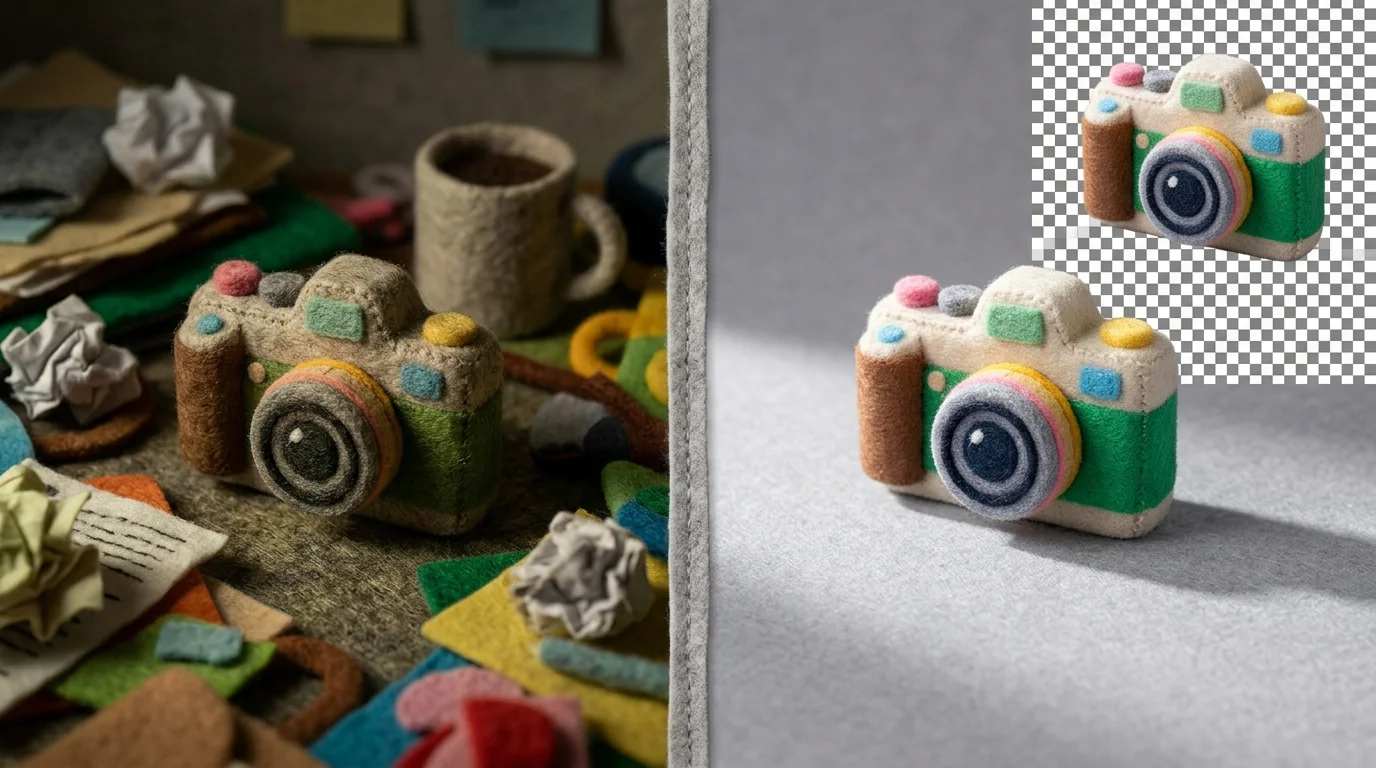
Getting the best results from AI background removal tools requires more than just uploading an image and hitting a button. The quality of your input directly influences the quality of your transparent output, so strategic preparation pays dividends.
Start with the Right Image
Choose images with clear subject-to-background separation whenever possible. High contrast between your main subject and its surroundings helps AI algorithms distinguish what to keep and what to remove. Natural lighting produces better results than harsh shadows or backlighting, which can confuse edge detection around fine details. If you're working with portraits, ensure your subject's outline is well-defined rather than soft or blended into the background. Product photography benefits from simple, uncluttered backgrounds—solid colors work exceptionally well, while busy environments require more processing power and may introduce minor artifacts.
Handle Complex Details with Care
Hair, fur, and intricate textures present the biggest challenge for background removal. Modern AI achieves 94-98% accuracy on standard images, but delicate strands and fine details sometimes need refinement. When processing images with these elements, zoom in during the preview stage to inspect edges closely. Many tools offer edge refinement sliders that let you adjust how aggressively the algorithm treats semi-transparent areas. For extremely complex subjects, consider taking a new photo with better lighting or simpler surroundings rather than fighting with a problematic original.
Quality Assurance Before Production
Always preview your transparent image at full resolution before downloading. Check the edges around your subject's perimeter, particularly where it meets the former background. Look for halos (faint colored fringes) or incomplete removal of background elements. If issues appear, use the tool's adjustment features to refine the mask. Once you're satisfied, download in PNG format to preserve transparency—this is non-negotiable for design work, web use, or when you need to create professional PNG images with transparent backgrounds.
Test your transparent image in its intended context before committing to final production. Place it against different colored backgrounds or within your design layout to ensure it integrates seamlessly.
Common Use Cases: Where Transparent Images Deliver Real Value
Transparent backgrounds solve real problems across industries. E-commerce sellers benefit most immediately—product photos with transparent backgrounds let customers focus entirely on what they're buying. According to research from Axis Intelligence and Slazzer, over 75% of online shoppers report that product image quality directly influences their purchasing decisions, with visual appearance vital for business success. A transparent background creator eliminates distracting clutter, letting your product shine against any background a retailer chooses.
Graphic designers and branding professionals rely on transparent images constantly. Logos, icons, and marketing assets need flexibility—they'll appear on websites, packaging, billboards, and social media. When you make the picture transparent, designers can layer it over any color, pattern, or background without awkward white halos or color bleeding. This flexibility is non-negotiable for professional work.
Content creators and social media managers use transparent images to maintain visual consistency. YouTube thumbnails, Instagram story graphics, and promotional posts all benefit from clean, isolated subjects. A transparent background lets your subject pop against trending colors or seasonal themes without recreating the entire image.
Print designers also depend on transparent images for packaging, labels, and promotional materials. When creating transparent images for production, printers need PNG files with true transparency to avoid unwanted background colors in the final product. This applies whether you're designing custom t-shirt transfers, sticker sheets, or product packaging inserts.
Web developers and UI designers use transparent PNGs extensively for buttons, icons, and interface elements. Transparency ensures elements blend seamlessly across different page backgrounds and responsive layouts. Even small icons benefit from transparent backgrounds—they integrate cleanly into light and dark modes without requiring separate versions.
The common thread across all these use cases: transparent backgrounds remove friction. They let your subject adapt to its context rather than forcing the context to adapt to your image.
Key Features to Look for in a Transparent Background Creator

Choosing the right tool to make photo transparent depends on understanding what separates a basic background remover from a professional-grade solution. Not all AI tools deliver the same results, and the features that matter most depend on your workflow and output requirements.
Processing speed and batch capabilities form the foundation of any practical tool. According to MindStudio AI's research on AI product photography platforms, leading tools process images in under 2 seconds with batch processing capabilities—critical for anyone handling multiple photos. If you're making pics transparent for an e-commerce catalog with hundreds of products, waiting 30 seconds per image becomes a bottleneck. Batch processing lets you upload 50+ images and process them simultaneously, saving hours of manual work.
Edge refinement quality determines whether your transparent background looks polished or amateur. Fine details like hair strands, fabric texture, and intricate product edges require sophisticated AI models. Look for tools offering adjustable edge detection and refinement options—the ability to fine-tune results rather than accepting a one-size-fits-all output. This becomes essential when you make a photo transparent for professional use where imperfect edges undermine credibility.
Output format flexibility matters more than most users realize. PNG with true transparency is standard, but some workflows require WEBP for faster web loading or specific formats for print production. Tools should support multiple export options without quality loss. When creating transparent images for different platforms—social media, web design, print materials—format versatility prevents the need for additional conversion steps.
Pricing transparency and scalability determine long-term value. Some tools charge per image, others offer monthly subscriptions with unlimited processing. Consider whether you need occasional background removal or regular batch processing. Free trials let you test edge quality and speed before committing.
| Feature | Why It Matters | Red Flag |
|---|---|---|
| Processing speed | Saves time on large projects | >5 seconds per image |
| Edge refinement | Professional-quality results | No adjustment options |
| Batch processing | Handles multiple images efficiently | Single-image only |
| Format options | Compatibility across platforms | PNG only |
| Pricing model | Cost-effective scaling | Hidden per-image fees |
The best tool balances speed, quality, and affordability for your specific needs—not necessarily the most expensive or feature-rich option available.
Frequently Asked Questions About Creating Transparent Images

Can AI handle complex backgrounds like trees, hair, or intricate patterns?
Modern AI background removal excels at isolating subjects from complex environments. Deep learning models trained on millions of images recognize fine details—individual hair strands, fur texture, and intricate edges—that would take manual editing hours to perfect. The technology struggles primarily with subjects that blend into their surroundings (camouflage patterns) or extremely low-contrast images, but standard photography poses no real challenge.
What file formats should I use for transparent pictures?
PNG is the gold standard for transparent images because it preserves the alpha channel (transparency data) without quality loss. WEBP also supports transparency and offers better compression. Avoid JPEG—it doesn't support transparency at all and will fill transparent areas with a solid background color. When you create transparent images, always export as PNG unless your platform specifically requires another format.
Is AI-generated transparency quality comparable to manual Photoshop editing?
For most use cases, yes. AI tools produce results that rival professional manual editing, especially around primary subjects. The difference becomes apparent only in extreme edge cases—very fine hair wisps or complex layered subjects. For e-commerce, social media, and design work, AI-generated transparency meets professional standards without the time investment.
How long does processing typically take?
Most modern tools process images in 2–5 seconds. Batch processing (handling multiple images simultaneously) can reduce per-image time significantly, making it practical for large projects. Speed varies by tool and image complexity, but waiting time is negligible compared to manual editing.
Can I adjust the results if the AI misses something?
Quality tools offer refinement options—you can manually touch up edges, restore accidentally removed areas, or adjust the selection mask. This hybrid approach combines AI speed with manual precision when needed.
Start Creating Transparent Images Today with AI
The barrier to professional-quality transparent images has collapsed. What once required hours in Photoshop now takes seconds with modern AI tools. You've learned the technology, explored real-world applications, and discovered what separates mediocre results from exceptional ones. The final step is simple: start making transparent images yourself.
The efficiency gain is genuine. Instead of wrestling with selection tools and feathering edges, you upload a photo and let AI handle the heavy lifting. Refinement takes moments when needed. For e-commerce product shots, social media graphics, or design work, this workflow delivers results that meet professional standards without the time investment. When you create transparent images this way, you're not sacrificing quality—you're reclaiming hours that manual editing would consume.
Your first transparent background creator experiment doesn't require commitment or expertise. Pick any image, upload it, and observe how the AI isolates your subject. You'll immediately understand why thousands of creators, designers, and businesses have adopted this approach. The speed and consistency speak for themselves.
Ready to experience it firsthand? Start creating your first transparent image now and discover why AI background removal has become the standard in visual content creation.
Recommended next steps
Turn this guide into an edit with the most relevant Weezard tools.


Ready to jump in?
Upload a photo, describe a change and review the result. Try 1 credit after signup and email verification.